
Tiles

Interactive links and buttons with text or media.
Use tiles for navigation or actions. Use Cards for content containers that are not interactive.
Put the call-to-action text in slot="title", which is styled as a link. Use slot="body" for optional supporting text. Keep both as direct children of the tile.
Text tile
Section titled “Text tile”A text tile has a secondary background, an optional icon, and bottom-aligned text. Put the optional body before the title.


Show code
import { Icon } from '@volvo-cars/react-icons';
export function TextTile() {  return (    <div className="grid-cols-1 md:grid-cols-2 gap-x-gutter gap-y-24">      <a href="#top" className="text-tile" style={{ minHeight: '200px' }}>        <Icon aria-hidden="true" icon="charging-battery" size={24} />        <p slot="body">Home charging and public stations</p>        <span slot="title">Charging</span>      </a>      <a href="#top" className="text-tile" style={{ minHeight: '200px' }}>        <p slot="body">Plan every stop with confidence</p>        <span slot="title">Without icon</span>      </a>    </div>  );}
Place the icon before the text, as a direct child of the tile. It does not need a slot.
Show code
<a class="text-tile" href="#" style="height: 200px"> <svg xmlns="http://www.w3.org/2000/svg" width="24" height="24" fill="none" viewBox="0 0 24 24" aria-hidden="true" > <path stroke="currentColor" stroke-width="1.5" d="M12 3v18M3 12h18" /> </svg> <p slot="body"><code>body</code> (optional)</p> <p slot="title"> <code>title</code> </p></a>Media tile
Section titled “Media tile”A media tile has a transparent background, with full-width 4 / 3 media above its text. Put the title before the optional body.
Titles and bodies use text-wrap: pretty by default. To test balanced title lines, apply the text-balance utility class to slot="title".
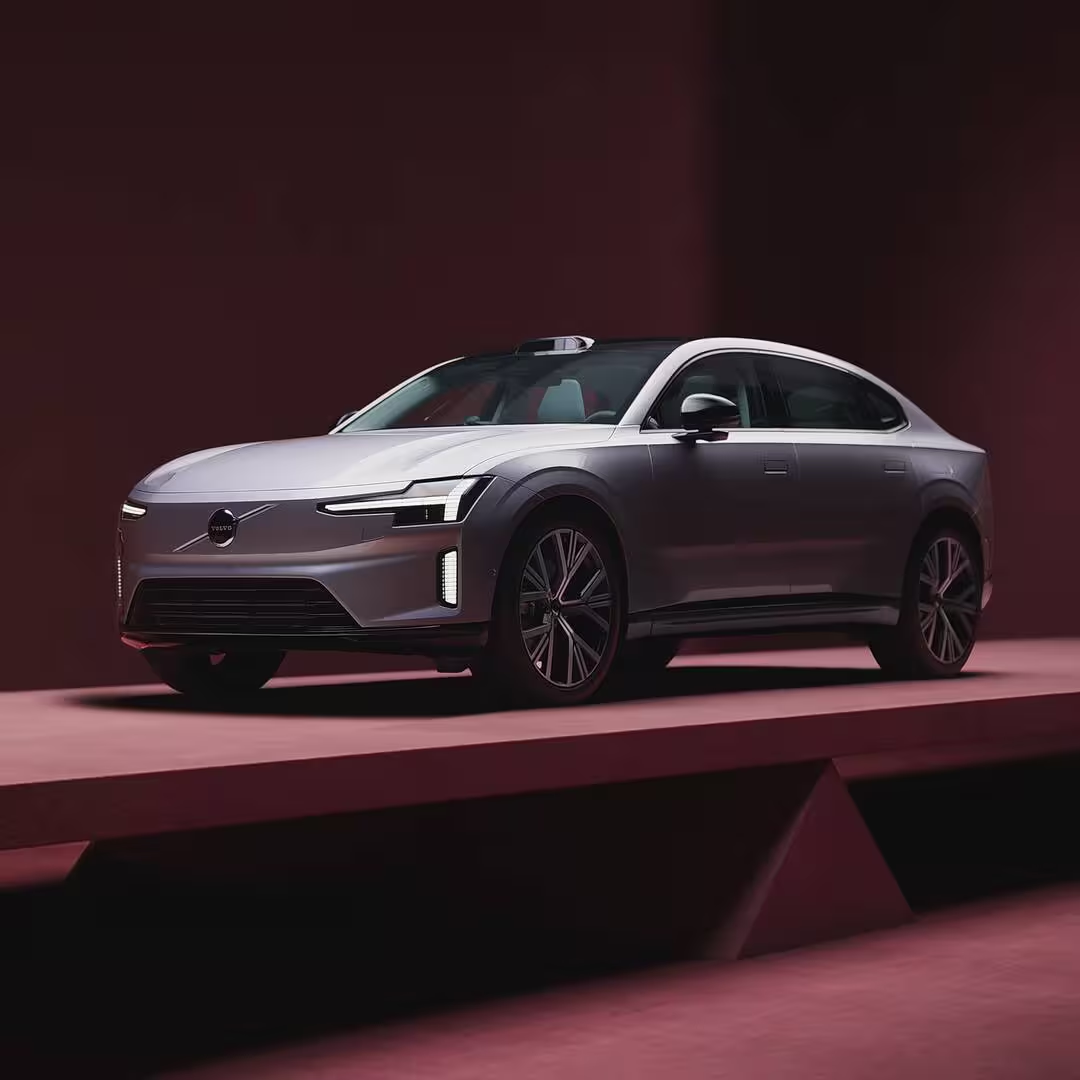
Show code
<a href="#" class="media-tile" style="max-width: 360px"> <div slot="media"> <img class="img" src="/images/cars/card/es90.avif" alt="" /> </div> <span slot="title">Explore the Volvo ES90</span> <p slot="body">Discover range, comfort and Scandinavian design.</p></a>Place slot="media" before the title, as a direct child of the tile. Use class img on the image inside it.
Show code
<a class="media-tile" href="#" style="max-width: 280px"> <div slot="media" class="bg-feedback-gray flex items-center justify-center"> <code>media</code> </div> <p slot="title"> <code>title</code> </p> <p slot="body"><code>body</code> (optional)</p></a>Framed variant
Section titled “Framed variant”Use data-variant="framed" to add a secondary background and padding. The background responds to hover and press. Unframed media tiles stay transparent in every state.
Show code
<a href="#" class="media-tile" data-variant="framed" style="max-width: 360px"> <div slot="media"> <img class="img" src="/images/cars/card/es90.avif" alt="" /> </div> <span slot="title">Explore the Volvo ES90</span> <p slot="body">Discover range, comfort and Scandinavian design.</p></a>Image proportions
Section titled “Image proportions”Images fill the media slot. Apply an aspect-ratio utility to slot="media" to change its proportions. See object fit to control how the image fits inside it.
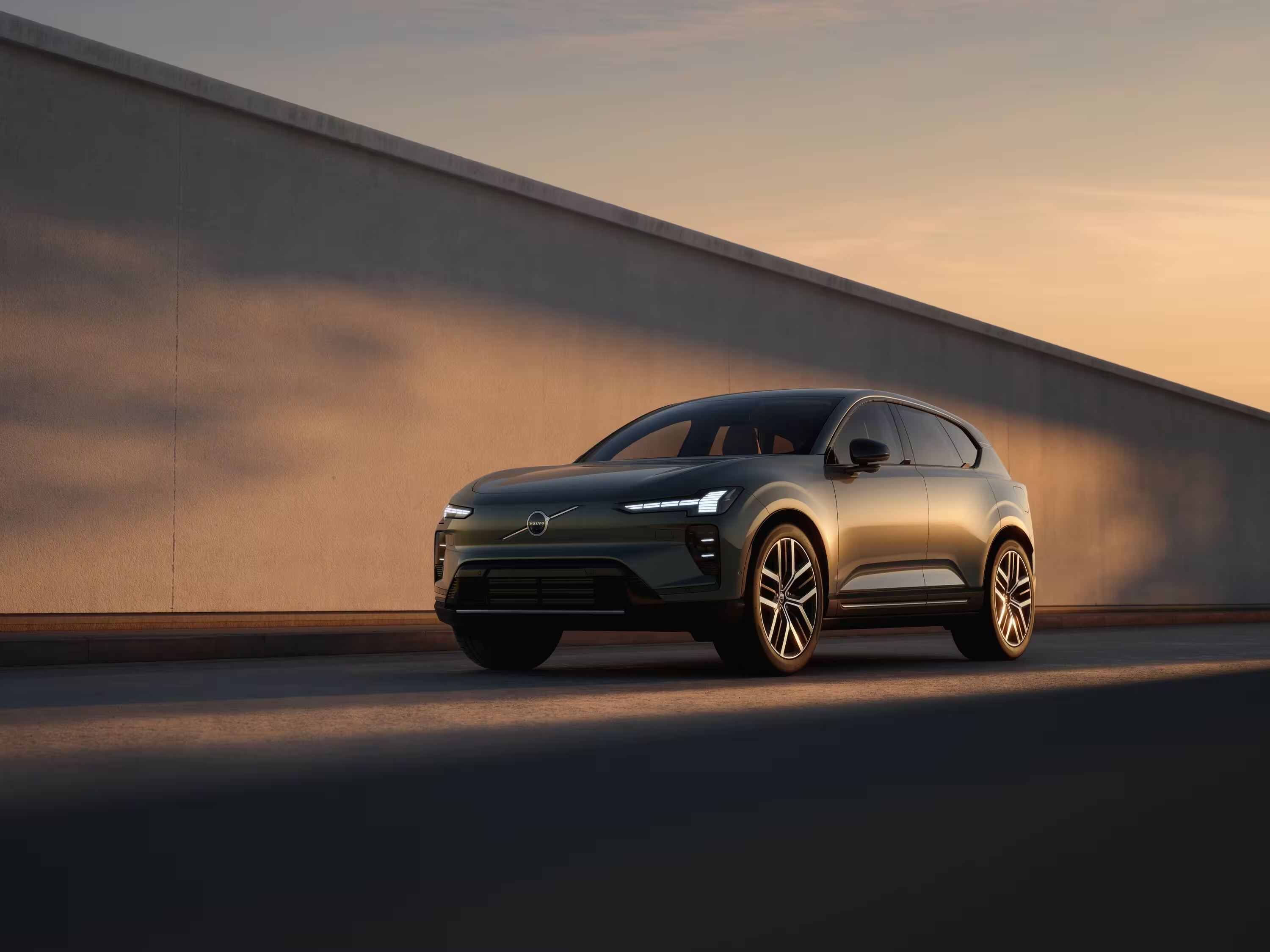
Show code
<a href="#" class="media-tile" style="max-width: 360px"> <div slot="media" class="aspect-16/9"> <img class="img" src="/images/decorative/ex60-road.avif" alt="" /> </div> <span slot="title">Explore the Volvo EX60</span> <p slot="body">Make room for your next adventure.</p></a>The image zooms inside its frame on hover, clipping its edges. Leave space around the subject and check that important details stay visible during the animation. Zoom is disabled for reduced motion.
Background colour
Section titled “Background colour”To customise a text tile or framed media tile, set --background-color on the tile, for example style="--background-color: var(--v-color-background-primary)". Hover and pressed colours are calculated from this background. The variable does not add a background to unframed media tiles.
Choose a matching foreground colour or colour mode. Direct background-color styles and bg-* utilities replace the calculated background states.
Accessibility
Section titled “Accessibility”- Use
<a href="…">for navigation and<button type="button">for actions. Do not nest interactive elements inside a tile. - In links, use paragraphs for body text and headings for titles where they fit the page hierarchy. In buttons, use spans for slots and text to keep the HTML valid.
- Follow the image alternative-text guidance and hide decorative icons with
aria-hidden="true".
Upgrading from 2.x
Section titled “Upgrading from 2.x”Rename the old label slot from body to title. The title keeps the underline automatically:
<!-- Before --><span slot="body">Explore the Volvo EX30</span>
<!-- After --><span slot="title">Explore the Volvo EX30</span>
If your body slot wraps both a title and supporting text, remove the wrapper and give each its own slot directly inside the tile.
- Review text spacing, alignment and wrapping. Titles and bodies now inherit the tile’s text colour.
- Move image sizing to the media slot. Images now fill it regardless of their intrinsic dimensions.
- To retain a media tile’s secondary background, add
data-variant="framed". To remove the added outer padding, usep-0on the tile andpb-16on the last text slot to keep space below the text.