
Range Slider

Select a value or a range of values using a draggable slider.
RangeSlider
Section titled “RangeSlider”Basic usage
Section titled “Basic usage”A simple range slider with controlled value.

Show code
import { RangeSlider } from '@volvo-cars/react-forms';import { useState } from 'react';
export function RangeSliderBasic() {  const [value, setValue] = useState(50);
  return (    <div className="my-24">      <RangeSlider        value={value}        onChange={(e) => setValue(Number(e.target.value))}      />    </div>  );}
With tooltip
Section titled “With tooltip”Enable the tooltip prop to show the current value while dragging.
With label and output
Section titled “With label and output”Pair the slider with a label and <output> element to display the current value prominently.
DoubleRangeSlider
Section titled “DoubleRangeSlider”The DoubleRangeSlider renders two thumbs for selecting a min/max range. It wraps two native <input type="range"> elements inside a role="group" container.
Basic usage
Section titled “Basic usage”Show code
import { DoubleRangeSlider } from '@volvo-cars/react-forms';import { useState } from 'react';
export function DoubleRangeSliderBasic() {  const [value, setValue] = useState<[number, number]>([25, 75]);
  return (    <div className="my-24">      <DoubleRangeSlider        value={value}        onValueChange={setValue}        minLabel="Minimum value"        maxLabel="Maximum value"        aria-label="Range"      />    </div>  );}
The value and defaultValue props accept a [number, number] tuple. Use onValueChange to receive the updated [min, max] pair directly, or onChange for the native input event.
With tooltip
Section titled “With tooltip”Enable the tooltip prop to show the current value for each thumb while it is dragged.
With label and output
Section titled “With label and output”Use aria-labelledby on the DoubleRangeSlider to reference a visible <label>. Customise minLabel and maxLabel to give each thumb a meaningful accessible name (defaults are “Minimum value” and “Maximum value”).
Controlled vs uncontrolled
Section titled “Controlled vs uncontrolled”The RangeSlider can be used in two modes:
- Controlled: Set both
valueandonChangeprops to manage the value externally - Uncontrolled: Use
defaultValuefor initial value, let the component manage state internally
// Controlled<RangeSlider value={value} onChange={(e) => setValue(Number(e.target.value))} />
// Uncontrolled<RangeSlider defaultValue={50} />
The same pattern applies to DoubleRangeSlider, where value and defaultValue accept a [number, number] tuple.
Accessibility
Section titled “Accessibility”- Use a
<label>element linked viahtmlFormatching the slider’sid - Use
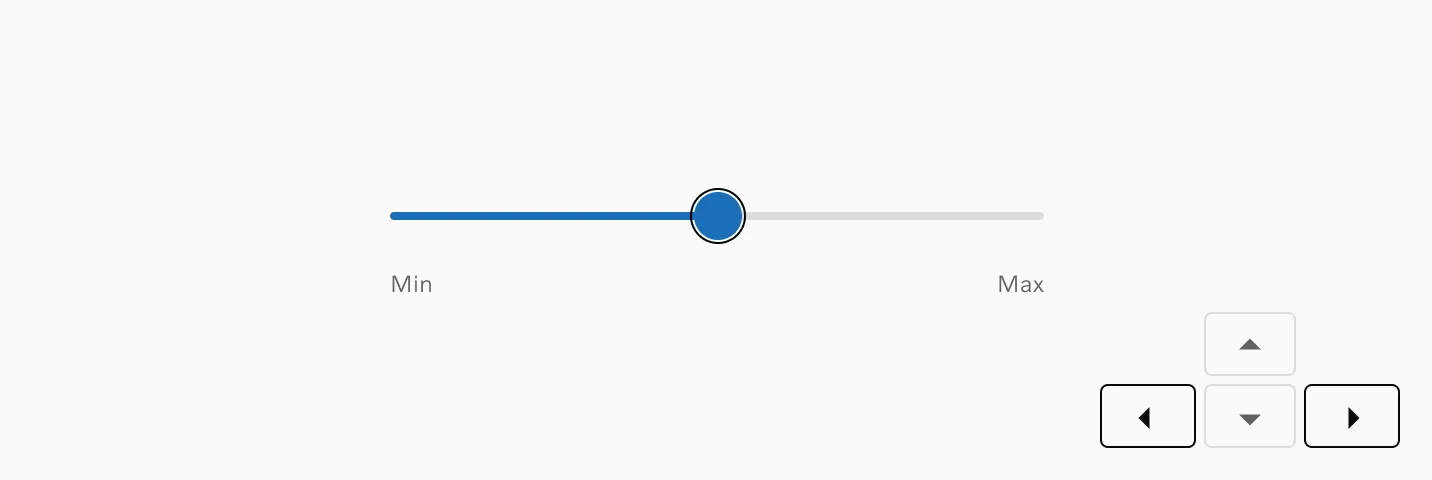
<output>element withhtmlForto announce value changes to screen readers - Arrow keys adjust the value when the slider is focused
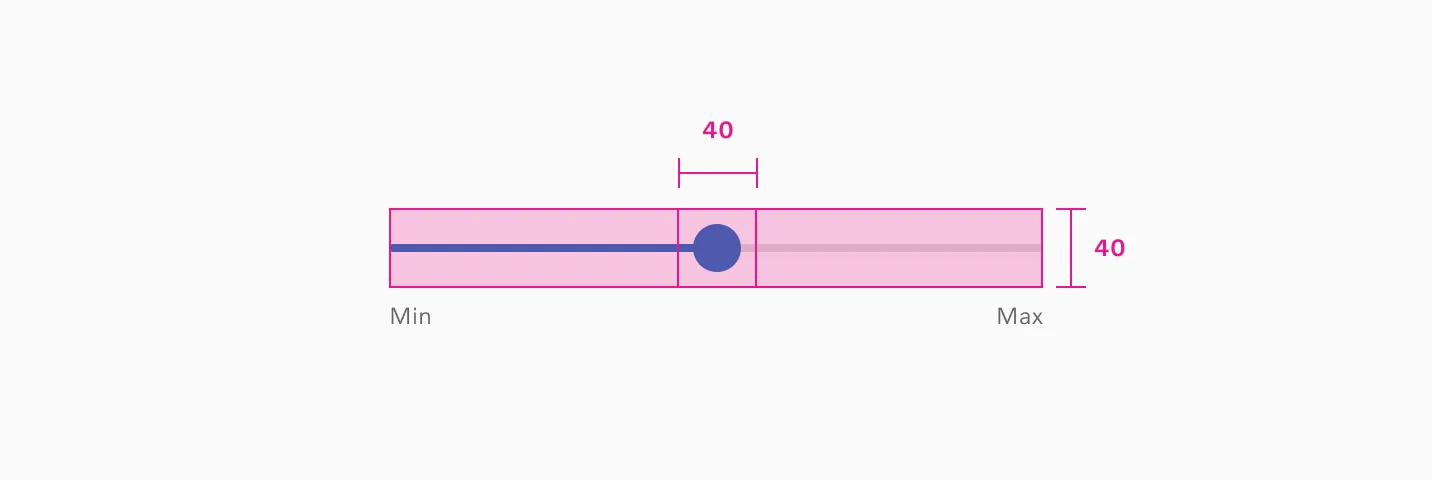
- The thumb has a minimum touch target of 40×40 pixels
For the DoubleRangeSlider:
- The component renders a
role="group"container. Label it witharia-labelledbyoraria-label - Each thumb has its own accessible name via
minLabelandmaxLabel: always customise these to match the context (e.g. “Minimum price”, “Maximum price”) - When
tooltipis enabled,<output>elements witharia-live="polite"announce value changes
See the full accessibility documentation for WCAG 2.2 criteria details.
Keyboard navigation
Section titled “Keyboard navigation”| Key | Action |
|---|---|
| Arrow Right | Increase value by step |
| Arrow Left | Decrease value by step |
| Arrow Up | Increase value by step |
| Arrow Down | Decrease value by step |
| Home | Set to minimum value |
| End | Set to maximum value |
| Tab | Move focus between thumbs (DoubleRangeSlider) |
RangeSlider
Section titled “RangeSlider”| Prop | Type | Required | Default |
|---|---|---|---|
name | string | - | - |
| The name of the input to use when submitting the form. | |||
form | string | - | - |
| Id of a form element that this input should be associated with. Defaults to the containing form element. | |||
onFocus | FocusEventHandler<HTMLInputElement> | - | - |
onBlur | FocusEventHandler<HTMLInputElement> | - | - |
onKeyDown | KeyboardEventHandler<HTMLInputElement> | - | - |
onKeyUp | KeyboardEventHandler<HTMLInputElement> | - | - |
min | number | - | 0 |
| The minimum value for the input. | |||
max | number | - | 100 |
| The maximum value for the input. | |||
step | number | - | - |
| The step interval between values. | |||
list | string | - | - |
| Id of a `<datalist>` element with a list of predefined values to suggest to the user. | |||
defaultValue | number | - | - |
| Default value of an uncontrolled input. | |||
tooltip | boolean | - | false |
| Provide a tooltip while sliding, indicating the current value. | |||
value | number | - | - |
| Value of the input. Makes the input controlled. | |||
onChange | ChangeEventHandler<HTMLInputElement, Element> | - | - |
| Fires immediately when the input’s value is changed by the user (for example, it fires on every keystroke). | |||
hidden | boolean | - | - |
id | string | - | - |
title | string | - | - |
dir | string | - | - |
lang | string | - | - |
slot | string | - | - |
translate | "yes" | "no" | - | - |
className | string | - | - |
style | CSSProperties | - | - |
tabIndex | number | - | - |
onPointerDown | PointerEventHandler<Element> | - | - |
onPointerEnter | PointerEventHandler<Element> | - | - |
onPointerLeave | PointerEventHandler<Element> | - | - |
onPointerMove | PointerEventHandler<Element> | - | - |
onPointerUp | PointerEventHandler<Element> | - | - |
DoubleRangeSlider
Section titled “DoubleRangeSlider”| Prop | Type | Required | Default |
|---|---|---|---|
name | string | - | - |
| The name of the input to use when submitting the form. | |||
form | string | - | - |
| Id of a form element that this input should be associated with. Defaults to the containing form element. | |||
onFocus | FocusEventHandler<HTMLInputElement> | - | - |
onBlur | FocusEventHandler<HTMLInputElement> | - | - |
onKeyDown | KeyboardEventHandler<HTMLInputElement> | - | - |
onKeyUp | KeyboardEventHandler<HTMLInputElement> | - | - |
min | number | - | 0 |
| The minimum value for the input. | |||
max | number | - | 100 |
| The maximum value for the input. | |||
step | number | - | 1 |
| The step interval between values. | |||
list | string | - | - |
| Id of a `<datalist>` element with a list of predefined values to suggest to the user. | |||
defaultValue | [number, number] | - | - |
| Default value of an uncontrolled input. | |||
precision | number | - | - |
| Number of decimal places to round values to. | |||
tooltip | boolean | - | false |
| Provide a tooltip while sliding, indicating the current value. | |||
value | [number, number] | - | - |
| Value of the input. Makes the input controlled. | |||
onChange | ChangeEventHandler<HTMLInputElement, Element> | - | - |
| Native change event handler, passed through as-is from whichever input fired. Use this when you need access to the underlying DOM event (e.g. to inspect `event.target.name` or integrate with form libraries). | |||
onValueChange | ((values: [number, number]) => void) | - | - |
| Fires immediately when either slider's value changes. Provides the full numeric pair `[min, max]` as the primary payload so consumers can keep the range value in state without parsing native events. | |||
minLabel | string | - | Minimum value |
| Accessible label for the minimum value input. | |||
maxLabel | string | - | Maximum value |
| Accessible label for the maximum value input. | |||
aria-labelledby | string | - | - |
| ID of an element that labels the slider group. | |||
aria-label | string | - | - |
| Accessible label for the slider group. | |||
hidden | boolean | - | - |
id | string | - | - |
title | string | - | - |
dir | string | - | - |
lang | string | - | - |
slot | string | - | - |
translate | "yes" | "no" | - | - |
className | string | - | - |
style | CSSProperties | - | - |
tabIndex | number | - | - |
onPointerDown | PointerEventHandler<Element> | - | - |
onPointerEnter | PointerEventHandler<Element> | - | - |
onPointerLeave | PointerEventHandler<Element> | - | - |
onPointerMove | PointerEventHandler<Element> | - | - |
onPointerUp | PointerEventHandler<Element> | - | - |