
Layout

The layout system is fluid by nature. Pages take advantage of the full viewport width, allowing content to breathe and scale naturally across breakpoints. A shift from earlier, more fixed principles where wider page margins left less room for content.
It is also gridless by principle. Instead of hard-coded columns, layouts are built around fluid content widths, responsive spacing, and component-level constraints. This keeps the foundation flexible while still producing consistent, well-aligned interfaces.
Layout anatomy
Section titled “Layout anatomy”Every page is made up of a few structural parts:
- Content area: the main region where primary page content lives.
- Sidebar area: an optional secondary region alongside the content, typically used for navigation, filters, or supporting content.
- Page margins: fluid space between the content and the viewport edges. Controlled by
--v-space-pagemargin(16 px on small screens, scaling up to 64 px on large screens).
Page layout
Section titled “Page layout”The pagelayout class goes on the <main> element. It sets up a CSS Grid that handles page margins, sidebar placement, and bleed automatically. Every page should include it.
<main class="pagelayout"> <!-- page content goes here --></main>Default layout
Section titled “Default layout”The page layout uses slots to assign structural roles to direct children of the pagelayout element.
Use slot="page" for sections that take all available space inside the page margins.
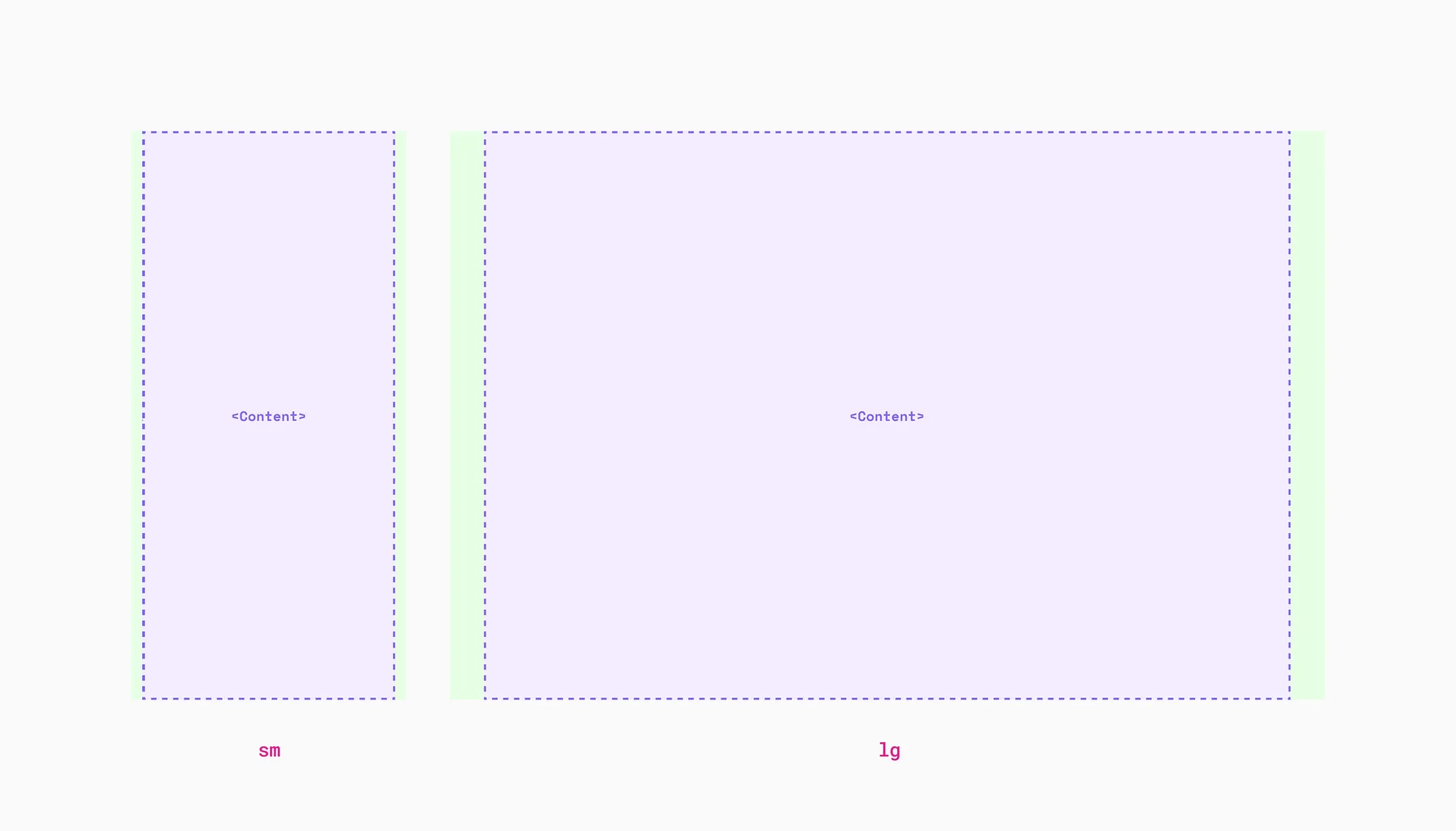
<main class="pagelayout"> <div slot="page">Content area</div></main>Bleed removes the page margins, letting content expand to the full viewport width. Add a data-bleed attribute to any slotted child:
| Attribute | Effect |
|---|---|
data-bleed | Bleeds both sides |
data-bleed-start | Bleeds only the start side (left in LTR) |
data-bleed-end | Bleeds only the end side (right in LTR) |
Each attribute also accepts responsive values to limit the bleed to specific viewport ranges:
| Value | Meaning |
|---|---|
"true" (default) | Always bleeds |
"until-md" | Bleeds below medium breakpoint only |
"until-lg" | Bleeds below large breakpoint only |
"md" | Bleeds from medium breakpoint and up |
"lg" | Bleeds from large breakpoint and up |
<main class="pagelayout"> <div slot="page" data-bleed>Full bleed: extends to viewport edges</div></main>Sidebar layout
Section titled “Sidebar layout”Add slot="main" and slot="sidebar" (or slot="sidebar-narrow") to create a two-column layout. The sidebar position is determined by DOM order. Place it before main for a start-side sidebar, or after for end-side.
| Slot | Width | Description |
|---|---|---|
slot="main" | Fluid (fills remaining space) | Primary content area |
slot="sidebar" | 368–464 px (fluid) | Wide sidebar (--v-size-sidebar-wide) |
slot="sidebar-narrow" | 240–304 px (fluid) | Narrow sidebar (--v-size-sidebar-narrow) |
On screens below the large breakpoint, the sidebar stacks with the main content. If you want to hide it on small screens instead (for example, relocating its content to a sheet), use conditional rendering in your application code.
Both slot="main" and slot="sidebar" support the same data-bleed attributes described above.
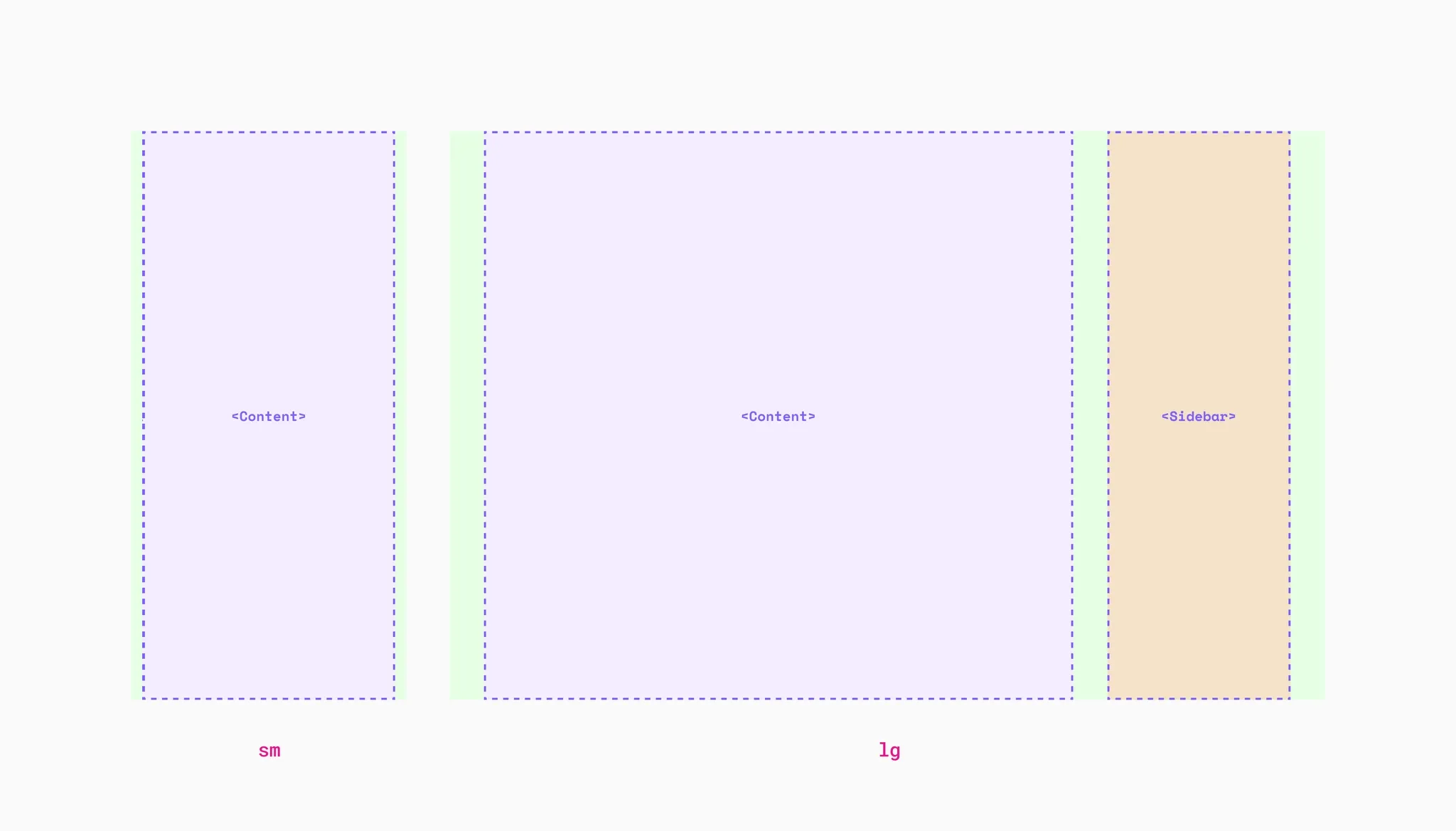
<main class="pagelayout"> <div slot="main">Main content</div> <div slot="sidebar">Sidebar</div></main>Sidebar on the start side
Section titled “Sidebar on the start side”Swap the DOM order to place the sidebar before the main content:
<main class="pagelayout"> <div slot="sidebar">Sidebar</div> <div slot="main">Main content</div></main>Containers
Section titled “Containers”Containers are centered, max-width constrained content areas. Use them inside pagelayout to limit content width while keeping page margins consistent.
| Class | Max width token |
|---|---|
container-xs | --v-size-grid-xs |
container-sm | --v-size-grid-sm |
container-md | --v-size-grid-md |
container-lg | --v-size-grid-lg |
container / container-xl | --v-size-grid-xl |
container-max | 160 rem |
Containers also support data-bleed to go full-width at smaller viewports. Useful for content that should be constrained on desktop but edge-to-edge on mobile:
<main class="pagelayout"> <div class="container-lg" data-bleed="until-lg"> Constrained on large screens, full width on smaller ones </div></main>Use max-w-prose to constrain text content to a comfortable reading width (--v-size-contentmax).
<main class="pagelayout"> <div class="container-xl">Full-width container</div> <div class="container-md">Medium container</div> <div class="container-sm">Small container</div></main>Simple column grid utilities for equal-width layouts. Use gap-x-gutter for consistent column spacing.
| Class | Columns |
|---|---|
grid | Grid container without setting columns |
grid-cols-1 | 1 column |
grid-cols-2 | 2 equal columns |
grid-cols-3 | 3 equal columns |
grid-cols-4 | 4 equal columns |
Supports responsive prefixes: md:grid-cols-2, lg:grid-cols-3, xl:grid-cols-4. Use grid-cols-1 to drop back to a single column at a breakpoint, such as grid-cols-1 md:grid-cols-3.
<div class="grid-cols-2 gap-x-gutter gap-y-24">  <div>Column</div>  <div>Column</div></div>
<div class="grid-cols-3 gap-x-gutter gap-y-24">  <div>Column</div>  <div>Column</div>  <div>Column</div></div>
Column span
Section titled “Column span”col-span-* makes a grid item span several columns. These classes apply to grid items, so unlike grid-cols-* they never set display themselves.
| Class | Effect |
|---|---|
col-span-1 | Span 1 column |
col-span-2 | Span 2 columns |
col-span-3 | Span 3 columns |
col-span-4 | Span 4 columns |
col-span-full | Span every column, whatever the count is |
Supports responsive prefixes: md:col-span-2, lg:col-span-full.
<div class="grid-cols-4 gap-x-gutter gap-y-24"> <h2 class="col-span-full">Heading across the grid</h2> <div class="col-span-3">Main content</div> <div>Aside</div></div>Responsive design
Section titled “Responsive design”Web experiences should be built mobile first, with layouts fluidly adjusting using flexbox, grid, container queries, and viewport units. Use breakpoints only when you need to significantly shift the layout at specific viewport sizes.
Breakpoints
Section titled “Breakpoints”Our breakpoints cover the most common points where you might need to significantly change the layout. Design handovers (delivery) will be in the middle of these breakpoints and are intended to cover the entire range up until the next breakpoint.
| Breakpoint | Token | Min | Delivery | Max |
|---|---|---|---|---|
Small (sm) | — | 0 | 402px | 479px |
Medium (md) | 30rem | 480px | 768px | 1023px |
Large (lg) | 64rem | 1024px | 1280px | 1599px |
Extra large (xl) | 100rem | 1600px | 1920px | ∞ |
sm
md
lg
xl
Utility class modifiers
Section titled “Utility class modifiers”Some layout classes have responsive modifier prefixes. Fluid utilities that already adapt to the viewport typically don’t need them.
Common modifiers: apply from the breakpoint and up:
| Prefix | Media query |
|---|---|
md: | @media (--v-from-md) |
lg: | @media (--v-from-lg) |
xl: | @media (--v-from-xl) |
Range modifiers: available for some classes:
| Prefix | Media query |
|---|---|
until-md: | @media (--v-until-md) |
until-lg: | @media (--v-until-lg) |
until-xl: | @media (--v-until-xl) |
md:until-lg: | @media (--v-from-md) and (--v-until-lg) |
md:until-xl: | @media (--v-from-md) and (--v-until-xl) |
lg:until-xl: | @media (--v-from-lg) and (--v-until-xl) |
<!-- Centered on small screens, left aligned on medium, right aligned on large --><p class="text-center md:text-start lg:text-end"> We want to provide you with the freedom to move in a personal, sustainable and safe way.</p>Media queries
Section titled “Media queries”Media query breakpoints are exported as Custom Media Queries, a draft CSS specification. They require a CSS postprocessor such as PostCSS. Import the breakpoints in each file that uses them:
@import url('@volvo-cars/css/breakpoints.css');
.component {  --size: 2rem;  width: var(--size);  height: var(--size);}
@media (--v-from-lg) {  .component {    --size: 3rem;  }}
To avoid fragmenting styles across a stylesheet, keep component styles in a single place and only change custom properties at different breakpoints.
Custom media queries reference
Section titled “Custom media queries reference”| Query | Range |
|---|---|
--v-from-md | ≥ 30 rem (480 px) |
--v-from-lg | ≥ 64 rem (1024 px) |
--v-from-xl | ≥ 100 rem (1600 px) |
--v-until-md | < 30 rem |
--v-until-lg | < 64 rem |
--v-until-xl | < 100 rem |
--v-only-md | 30 rem – 63.99 rem |
--v-only-lg | 64 rem – 99.99 rem |
--v-only-xl | ≥ 100 rem |
Utilities
Section titled “Utilities”The tables below describe utilities from @volvo-cars/css. A placeholder such as {size} accepts only the values listed with that table.
Responsive support is specific to each family. md:, lg:, and xl: variants require their corresponding stylesheets, all included by @volvo-cars/css/styles_all-media.css. Each section lists its supported prefixes; prefixes cannot be combined freely.
Spacing tokens
Section titled “Spacing tokens”The design system provides two spacing scales. fixed values for precise control and fluid values that scale with the viewport.
Fixed spacing: pixel-based (expressed in rem), used for component-level spacing:
| Token | Value |
|---|---|
--v-space-2 | 2 px |
--v-space-4 | 4 px |
--v-space-8 | 8 px |
--v-space-12 | 12 px |
--v-space-16 | 16 px |
--v-space-24 | 24 px |
--v-space-32 | 32 px |
--v-space-48 | 48 px |
--v-space-64 | 64 px |
Fluid spacing: scales between a min and max based on viewport width, used for vertical section spacing:
| Token | Range |
|---|---|
--v-space-xs | 8 – 20 px |
--v-space-sm | 16 – 32 px |
--v-space-md | 24 – 48 px |
--v-space-lg | 32 – 56 px |
--v-space-xl | 48 – 72 px |
--v-space-2xl | 64 – 128 px |
Other tokens:
| Token | Description |
|---|---|
--v-space-pagemargin | Fluid page margins (16 – 64 px) |
--v-space-pageoffset | Page margin plus centering space beyond the maximum page width |
--v-space-gutter | Column gutter spacing |
--v-space-gridded-element-gap | Micro gap between gridded UI elements |
Use .stack-* classes to create vertical rhythm between sibling elements. Stack applies margin-top to all children except the first.
Fixed stacks:
| Class | Gap |
|---|---|
stack-4 | 4 px |
stack-8 | 8 px |
stack-16 | 16 px |
stack-24 | 24 px |
stack-32 | 32 px |
stack-48 | 48 px |
stack-64 | 64 px |
Fluid stacks:
| Class | Gap |
|---|---|
stack-s | --v-space-s |
stack-m | --v-space-m |
stack-l | --v-space-l |
stack-text starts as stack-16 but includes additional rules for heading compositions, ensuring consistent typographic spacing with little effort.
<div class="stack-text"> <h1 class="statement-3">For a better future.</h1> <p class="heading-2">We want to provide you with the freedom to move.</p></div>Override individual gaps with mt-* classes or the --stack-gap custom property.
Stack classes have no responsive prefixes.
Use .gap-* classes to create separation between children in flex or grid layouts.
| Class | Value |
|---|---|
gap-0 | 0 |
gap-2 | 2 px |
gap-4 | 4 px |
gap-8 | 8 px |
gap-12 | 12 px |
gap-16 | 16 px |
gap-24 | 24 px |
gap-32 | 32 px |
gap-48 | 48 px |
gap-64 | 64 px |
gap-x-gutter | --v-space-gutter (column gutter) |
gap-gridded-element | --v-space-gridded-element-gap |
gap-y-xs | --v-space-xs (fluid: 8–20 px) |
gap-y-sm | --v-space-sm (fluid: 16–32 px) |
gap-y-md | --v-space-md (fluid: 24–48 px) |
gap-y-lg | --v-space-lg (fluid: 32–56 px) |
gap-y-xl | --v-space-xl (fluid: 48–72 px) |
gap-y-2xl | --v-space-2xl (fluid: 64–128 px) |
gap-y-s | --v-space-s (legacy spacing token) |
gap-y-m | --v-space-m (legacy spacing token) |
gap-y-l | --v-space-l (legacy spacing token) |
Fixed sizes 0, 2, 4, 8, 12, 16, 24, 32, 48, 64, and gridded-element are also available as gap-x-{size} (column only) and gap-y-{size} (row only). Fluid and legacy spacing tokens are available only with gap-y-; gutter is available only with gap-x-.
Every gap class supports md:, lg:, and xl: prefixes.
<div class="flex-row gap-16"> <div>A</div> <div>B</div> <div>C</div></div>Margin
Section titled “Margin”Use m{direction}-{size} classes for precise spacing control. Direction is one of t (top), b (bottom), y (vertical), l (inline-start), r (inline-end), x (horizontal), or omitted for all sides.
| Class pattern | Supported values |
|---|---|
m{direction}-{size} | Sizes: 0, 2, 4, 8, 12, 16, 24, 32, 48, 64; all directions |
-m{direction}-{size} | Negative fixed margins: the same sizes except 0; all directions |
m{direction}-{size} | Fluid sizes: xs, sm, md, lg, xl, 2xl; directions t, b, y only |
m{direction}-{size} | Legacy sizes: s, m, l; directions t, b, y only |
mx-pagemargin, ml-pagemargin, mr-pagemargin | Fluid page margin on both inline edges, start, or end |
mx-pageoffset, ml-pageoffset, mr-pageoffset | Page margin plus centering space beyond the maximum page width |
m-auto, mx-auto, my-auto, mt-auto, mb-auto, ml-auto, mr-auto | Automatic margin |
Every margin class supports md:, lg:, and xl: prefixes. Put the breakpoint before the negative sign, for example md:-mt-8. Negative margins are available only for the nonzero fixed sizes.
Prefer stack for vertical rhythm and flexbox distribution (justify-between, justify-evenly) for horizontal spacing. Use margin utilities when you need precise control over individual elements.
Padding
Section titled “Padding”Use p{direction}-{size} classes. Same direction pattern as margin: t, b, y, l, r, x, or omitted.
| Class pattern | Supported values |
|---|---|
p{direction}-{size} | Sizes: 0, 2, 4, 8, 12, 16, 24, 32, 48, 64; all directions |
p{direction}-{size} | Fluid sizes: xs, sm, md, lg, xl, 2xl; directions t, b, y only |
p{direction}-{size} | Legacy sizes: s, m, l; directions t, b, y only |
px-pagemargin, pl-pagemargin, pr-pagemargin | Fluid page margin on both inline edges, start, or end |
px-pageoffset, pl-pageoffset, pr-pageoffset | Page margin plus centering space beyond the maximum page width |
Every padding class supports md:, lg:, and xl: prefixes. Padding has no negative or auto variants.
<section class="py-xl px-16"> Fluid vertical padding, fixed horizontal padding</section>Display
Section titled “Display”| Class | Effect |
|---|---|
block | Block outer layout |
inline | Inline outer layout |
inline-flex | Inline outer layout with a flex container inside |
inline-grid | Inline outer layout with a grid container inside |
flow-root | Establishes a new block formatting context (inline-block equivalent with inline flow-root) |
contents | Element’s children participate in the parent layout directly |
hidden | display: none |
invisible | visibility: hidden (preserves layout space) |
sr-only | Visually hidden, accessible to screen readers |
inline-flex and inline-grid set the outer display only, so combine them with flex-col, flex-wrap, grid-cols-* and the rest as usual.
inline can also be combined with flex and grid directly: inline flex-row and inline-flex flex-row are equivalent, as are inline grid-cols-2 and inline-grid grid-cols-2.
block, inline, inline-flex, inline-grid, flow-root, and contents support md:, lg:, and xl: prefixes. sr-only has no variants.
Both hidden and invisible support every prefix below, for example md:hidden or md:until-lg:invisible:
| Prefix | Applies |
|---|---|
md:, lg:, xl: | From the named breakpoint upward |
until-md:, until-lg:, until-xl: | Below the named breakpoint |
md:until-lg:, md:until-xl:, lg:until-xl: | Within the named breakpoint range |
empty: | When the element matches :empty |
Use the HTML hidden attribute for always-hidden content. Use hidden="until-found" if the content should be searchable with find-in-page. Use empty:hidden to remove an empty element from layout, or empty:invisible to preserve its space.
| Class | Effect |
|---|---|
flex | Flex container without changing its direction |
flex-row | Horizontal direction (default) |
flex-col | Vertical direction |
flex-row-reverse | Reversed horizontal |
flex-col-reverse | Reversed vertical |
flex-wrap | Allow wrapping |
flex-nowrap | Prevent wrapping |
flex-grow | Allow item to grow |
flex-grow-0 | Prevent growing |
flex-shrink | Allow item to shrink |
flex-shrink-0 | Prevent shrinking |
flex-1 | Grow and shrink from zero |
flex-none | Neither grow nor shrink |
Alignment:
| Class | Effect |
|---|---|
items-start | Align items to start |
items-center | Center items |
items-end | Align items to end |
items-stretch | Stretch items (default) |
items-baseline | Align item text baselines |
self-start | Override alignment for one item |
self-center | Center one item |
self-end | Align one item to end |
self-stretch | Stretch one item |
Justify:
| Class | Effect |
|---|---|
justify-start | Pack items to start |
justify-center | Center items |
justify-end | Pack items to end |
justify-between | Even spacing, no edges |
justify-around | Even spacing, half edges |
justify-evenly | Even spacing, equal edges |
All flex, alignment, and justify classes above support md:, lg:, and xl: prefixes.
<nav class="flex-row items-center justify-between gap-16"> <a href="/">Logo</a> <div class="flex-row gap-8"> <a href="/about">About</a> <a href="/contact">Contact</a> </div></nav>Flex basis
Section titled “Flex basis”Apply these classes to a flex item to set its initial size before growing or shrinking.
| Class or pattern | Effect |
|---|---|
basis-auto | Use the item’s main-axis size or content |
basis-{size} | Fixed sizes: 0, 8, 16, 24, 32, 40, 48, 64 px, expressed in rem |
basis-1/2 | flex-basis: 50% |
basis-full | flex-basis: 100% |
basis-{size} | Grid sizes: xs, sm, md, lg, xl, using the matching --v-size-grid-{size} token |
Every flex-basis class supports md:, lg:, and xl: prefixes, including grid sizes.
Legacy slices
Section titled “Legacy slices”The layout-* slice classes are deprecated and retained only for compatibility
with existing pages. New layouts should combine a container with responsive
grid or flex utilities so their behavior is explicit and can adapt to the
content.
<div class="container-xl grid lg:grid-cols-2 gap-x-gutter gap-y-24"> <div>Primary content</div> <div>Secondary content</div></div>There is no one-to-one utility replacement for the legacy asymmetric slice
geometry or its data-reversed behavior. Preserve it locally while migrating
an existing page, then redesign that layout using its actual content
requirements.
| Class or pattern | Effect |
|---|---|
w-{size} | Fixed sizes: 0, 8, 16, 24, 32, 40, 48, 64 px, expressed in rem |
w-1/2, w-full | Width of 50% or 100% |
w-fit, w-min, w-auto | Width of fit-content, min-content, or auto |
min-w-0, min-w-fit, min-w-min | Minimum width of 0, fit-content, or min-content |
max-w-1/2, max-w-full | Maximum width of 50% or 100% |
max-w-fit, max-w-min | Maximum width of fit-content or min-content |
w-xs, w-sm, w-md, w-lg, w-xl | Fluid width using the matching --v-size-grid-{size} token; not centered |
max-w-prose | Reading width from --v-size-contentmax |
All rows except grid widths (w-xs through w-xl) and max-w-prose support md:, lg:, and xl: prefixes.
Height
Section titled “Height”| Class or pattern | Effect |
|---|---|
h-{size}, min-h-{size}, max-h-{size} | Height, minimum, or maximum; fixed sizes: 0, 8, 16, 24, 32, 40, 48, 64 px, expressed in rem |
h-full, min-h-full, max-h-full | Height, minimum, or maximum of 100% |
h-fit, min-h-fit, max-h-fit | Height, minimum, or maximum of fit-content |
h-auto | Automatic height |
h-1lh | One line height (1lh, with a 1.5em fallback) |
max-h-inherit | Inherit the parent’s maximum height |
All height classes except h-1lh and max-h-inherit support md:, lg:, and xl: prefixes. Use h-auto to release a fixed height, such as h-64 md:h-auto.
Aspect ratio
Section titled “Aspect ratio”These utilities work on any element. See Media for image and video examples.
| Class | Ratio |
|---|---|
aspect-1/1 | Square, 1:1 |
aspect-4/5 | Portrait, 4:5 |
aspect-2/3 | Portrait, 2:3 |
aspect-9/16 | Portrait, 9:16 |
aspect-4/3 | Landscape, 4:3 |
aspect-3/2 | Landscape, 3:2 |
aspect-16/9 | Landscape, 16:9 |
aspect-21/9 | Landscape, 21:9 |
All aspect-ratio classes support md:, lg:, and xl: prefixes.
Object fit
Section titled “Object fit”Use these on images or videos with a constrained box. See Media for usage guidance.
| Class | Effect |
|---|---|
object-cover | Fill the box, cropping overflow |
object-contain | Fit the whole source inside the box |
object-fill | Stretch to fill the box, allowing distortion |
Object-fit classes have no responsive prefixes.
Borders
Section titled “Borders”Border widths use the design system’s global solid border style and default --v-color-ornament-primary color. Add a border color class to change the color, for example border-b border-primary.
| Edge | Classes for 0 / 1 / 2 px |
|---|---|
| All sides | border-0, border, border-2 |
| Top | border-t-0, border-t, border-t-2 |
| Bottom | border-b-0, border-b, border-b-2 |
| Inline start | border-l-0, border-l, border-l-2 |
| Inline end | border-r-0, border-r, border-r-2 |
| Both inline edges | border-x-0, border-x, border-x-2 |
| Both block edges | border-y-0, border-y, border-y-2 |
l and r follow the writing direction: start is left in LTR and right in RTL. All width classes above support md:, lg:, and xl: prefixes, such as border-b md:border-b-0.
Inset rings:
| Class | Effect |
|---|---|
border-ring | A 1 px inset box-shadow border |
border-ring-2 | A 2 px inset box-shadow border |
Rings use the same border color classes and ornament default, but do not take up layout space. They replace box-shadow and have no responsive prefixes. See supported state utilities for conditional border widths and rings.
Shape and radius
Section titled “Shape and radius”| Class | Border radius |
|---|---|
shape-default | --v-shape-default |
shape-emphasis | --v-shape-emphasis |
rounded-none | 0 |
rounded-full | --v-shape-emphasis, the same as shape-emphasis |
Shape and radius classes have no responsive or state prefixes.
Position
Section titled “Position”| Class | Effect |
|---|---|
static | Default positioning |
relative | Relative to normal position |
absolute | Removed from flow, relative to positioned ancestor |
fixed | Relative to viewport |
sticky | Sticks when scrolling past threshold |
Position classes have no responsive prefixes. Their offsets do:
| Class patterns | Supported suffixes |
|---|---|
top-{value}, bottom-{value}, start-{value}, end-{value} | Fixed sizes: 0, 2, 4, 8, 12, 16, 24, 32, 48, 64 px, expressed in rem |
top-{value}, bottom-{value}, start-{value}, end-{value} | 1/2 (50%), full (100%), auto |
Every offset supports md:, lg:, and xl: prefixes. start and end respect RTL direction. There are no negative offset utilities.
Containment:
| Class | Effect |
|---|---|
contain-content | Layout, paint, and style containment (contain: content) |
contain-none | Disable containment |
Use contain-content on a parent to scope absolutely positioned children. It also clips painting outside the container. Neither containment class has responsive prefixes.
<div class="contain-content"> <div class="absolute top-0 end-0">Positioned element</div></div>Z-index
Section titled “Z-index”| Class | Token |
|---|---|
z-spinner | --v-index-spinner |
z-overlay | --v-index-overlay |
z-navigation | --v-index-navigation |
z-default | --v-index-default |
z-deep | --v-index-deep |
These set z-index within the element’s stacking context and have no responsive prefixes.
Overflow
Section titled “Overflow”| Class | Effect |
|---|---|
overflow-auto | Scroll when needed |
overflow-hidden | Clip overflow |
overflow-visible | Show overflow |
overflow-clip | Clip with no scrolling |
Each value (auto, hidden, visible, clip) is also available as overflow-x-{value} and overflow-y-{value}. Every overflow class supports md:, lg:, and xl: prefixes, for example overflow-hidden lg:overflow-auto.
Scrolling
Section titled “Scrolling”| Class | Effect |
|---|---|
scrollbar-none | Hide the native scrollbar unless the element matches :focus-visible |
snap-x | Mandatory horizontal scroll snapping on a container |
snap-y | Mandatory vertical scroll snapping on a container |
snap-start | Align a child’s start edge at its snap point |
snap-center | Align a child’s center at its snap point |
snap-end | Align a child’s end edge at its snap point |
Pair a container’s snap-x or snap-y with alignment classes on its children, for example overflow-x-auto snap-x with snap-start items. Snapping does not create overflow by itself. Scrolling classes have no responsive prefixes.
Use scrollbar-none only when you provide a visual scroll indicator and clickable controls. Scrolling remains available, and the scrollbar returns on keyboard focus.
Translate
Section titled “Translate”Reposition elements using the CSS translate property. Horizontal translations automatically flip in RTL.
| Class | Effect |
|---|---|
translate-x-0 | Reset horizontal translation |
translate-y-0 | Reset vertical translation |
translate-x-1/2 | Move right 50% |
-translate-x-1/2 | Move left 50% |
translate-y-1/2 | Move down 50% |
-translate-y-1/2 | Move up 50% |
translate-x-full | Move right 100% |
-translate-x-full | Move left 100% |
translate-y-full | Move down 100% |
-translate-y-full | Move up 100% |
Directions above describe LTR; horizontal directions reverse in RTL. Translation classes have no responsive or state prefixes.