
Tabs

Switch between different views or content sections within a page.
Compose tabs with useTabList, useTab, and useTabPanel together with the .tablist and .tab classes.

Show code
import type { TabGroupState } from '@volvo-cars/react-headless';import { useTab, useTabList, useTabPanel } from '@volvo-cars/react-headless';
const tabs = [  { title: 'Overview', content: 'Overview content goes here.' },  { title: 'Interior', content: 'Interior content goes here.' },  { title: 'Features', content: 'Features content goes here.' },];
function Tab({  state,  index,  title,}: {  state: TabGroupState;  index: number;  title: string;}) {  const { tabProps } = useTab({ state, index });  return (    <button {...tabProps} className="tab">      {title}    </button>  );}
export function BasicTabs() {  const { tabListProps, tabGroupState, selectedIndex } = useTabList();  const { tabPanelProps } = useTabPanel({    state: tabGroupState,    index: selectedIndex,  });
  return (    <div>      <div {...tabListProps} aria-label="Car sections" className="tablist">        {tabs.map(({ title }, index) => (          <Tab key={title} state={tabGroupState} index={index} title={title} />        ))}      </div>      <div {...tabPanelProps} className="py-24">        {tabs[selectedIndex].content}      </div>    </div>  );}
Stretched
Section titled “Stretched”Use the tablist-stretched class instead of tablist to make tabs fill the available width. Best suited for 2–4 tabs with labels of similar length.
Vertical
Section titled “Vertical”Pass orientation: 'vertical' to useTabList and let the .tablist CSS handle the layout. Vertical tabs render a border on the inline-end side by default. Add data-placement="start" to move it to the inline-start side.
The default selected indicator uses the primary foreground colour. Set data-color="accent" on the tablist element to switch to accent blue.
Tabs as navigation links
Section titled “Tabs as navigation links”When tabs link to different pages, use <a> elements with aria-current="page" instead of the tab hooks. This variant doesn’t need tab panels.
Keyboard navigation
Section titled “Keyboard navigation”The hooks implement the WAI-ARIA Tabs pattern:
- Arrow Left / Right: move focus between horizontal tabs and auto-select.
- Arrow Up / Down: move focus between vertical tabs and auto-select.
- Home / End: jump to first / last tab.
- Tab key: moves focus into the active tab panel, not to the next tab.
Accessibility
Section titled “Accessibility”Key consumer responsibilities from the WCAG audit:
- ARIA roles:
useTabListsetsrole="tablist"andaria-orientation.useTabsetsrole="tab"andaria-selected.useTabPanelsetsrole="tabpanel"andaria-labelledby. For CSS-only usage, add these attributes manually. - Labelling: provide
aria-labelon the tablist element (e.g."Page navigation"). - Focus management: roving
tabIndexis handled by the hooks. Only the active tab hastabIndex={0}. - On Input: avoid triggering unrelated side effects when switching tabs.
Target sizes
Section titled “Target sizes”- Horizontal tabs with 16px labels have a minimum target height of 48px.
- Horizontal tabs with 20px labels have a minimum target height of 64px.
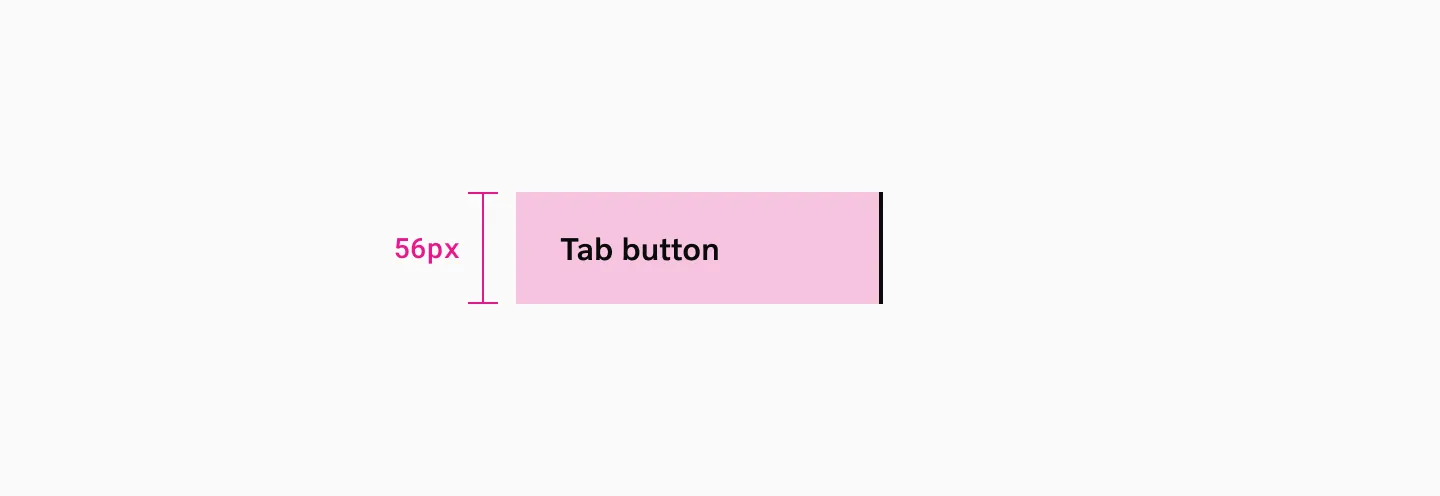
- Vertical tabs have a minimum target height of 56px.


The arrow keys move and select tabs, while Tab moves focus into the active panel. Ensure the tab, panel, selected state, and labels are announced through their ARIA relationships.
See the useTabs hooks documentation for full API reference, options, and return values for useTabList, useTab, and useTabPanel.