
Cards

Text card
Section titled “Text card”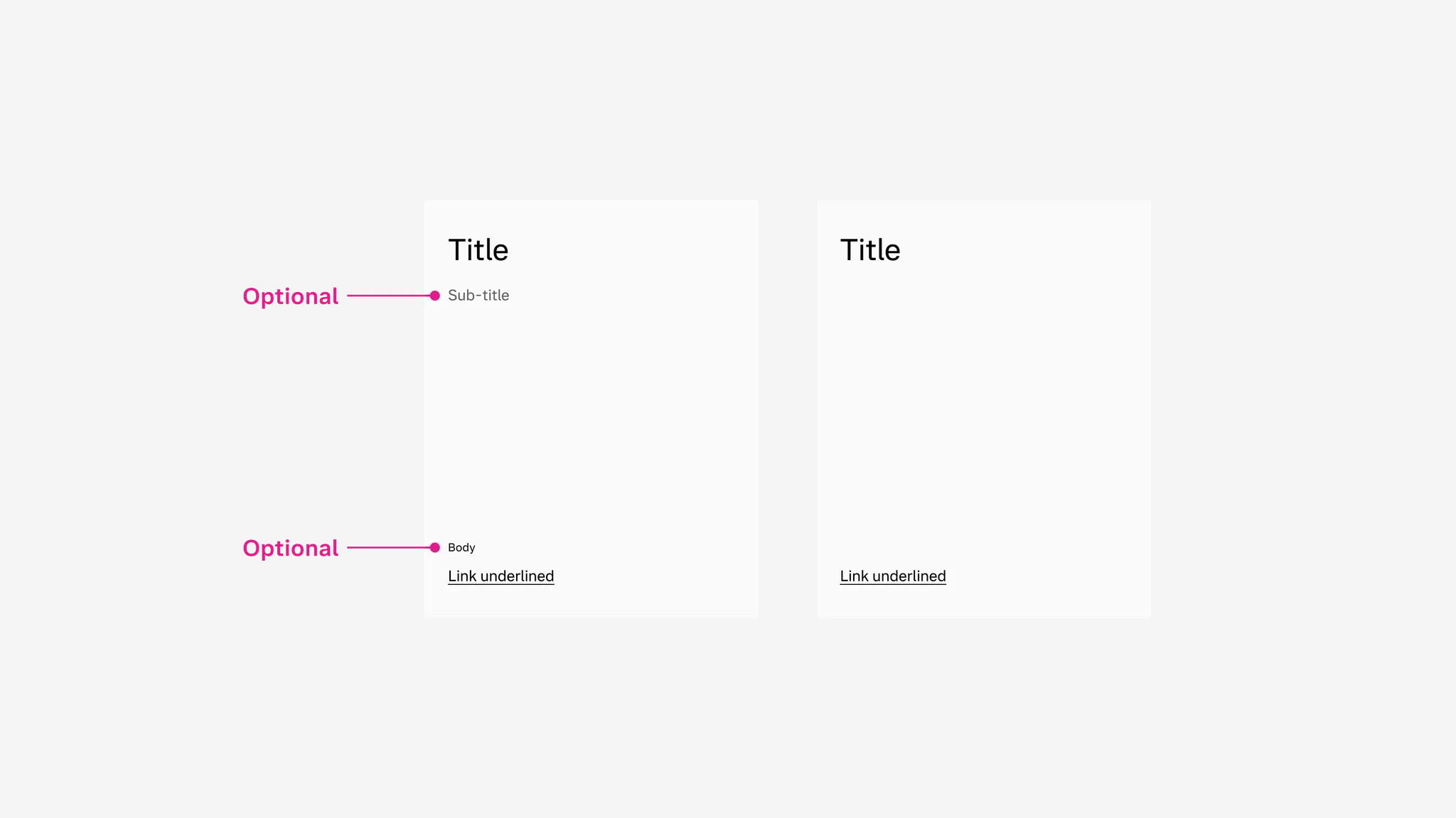
Showing: Text card with optional text elements turned off
Variants
Section titled “Variants”Sizing
Section titled “Sizing”The text card is free-forming and can be set to any width or height you need. For consistency, use the allowed ratios coming from the media placeholder as far as possible.
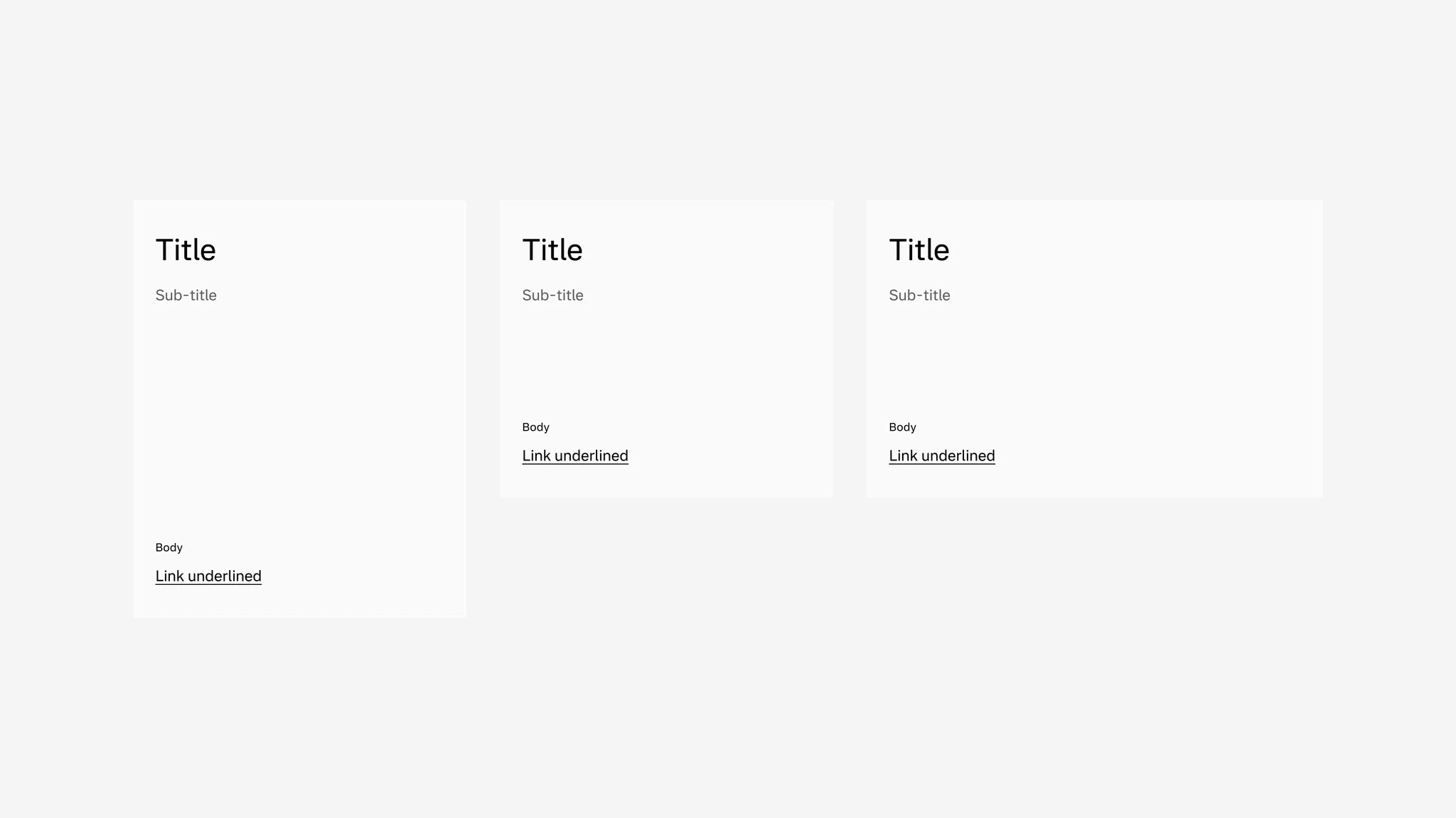
Showing: Text card in various sizes.
States
Section titled “States”The text card is clickable with states. The link underline included in the card has states as well.
Background color
Section titled “Background color”The text card supports secondary background.
Showing: Text card in secondary background
Spacing
Section titled “Spacing”In vertical columns and grids the text card can use gridded-element-gap or a more traditional gutter depending on context.
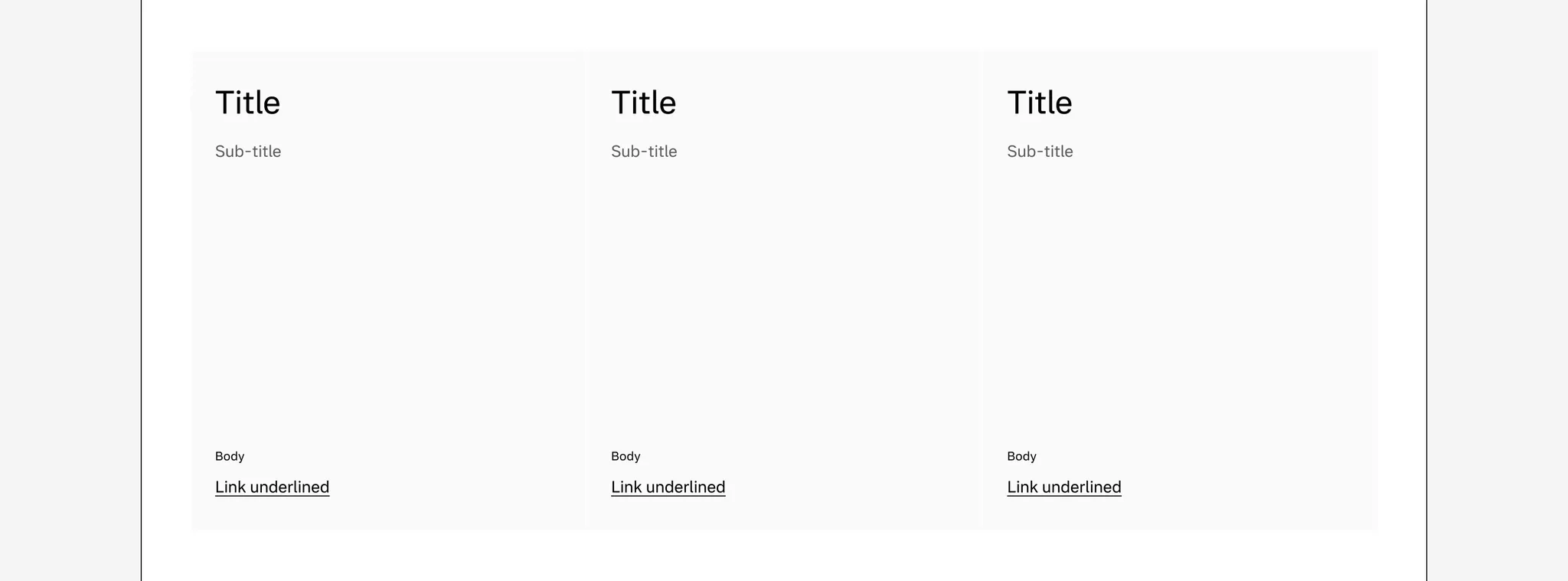
Showing: Text card with gridded-element-gap
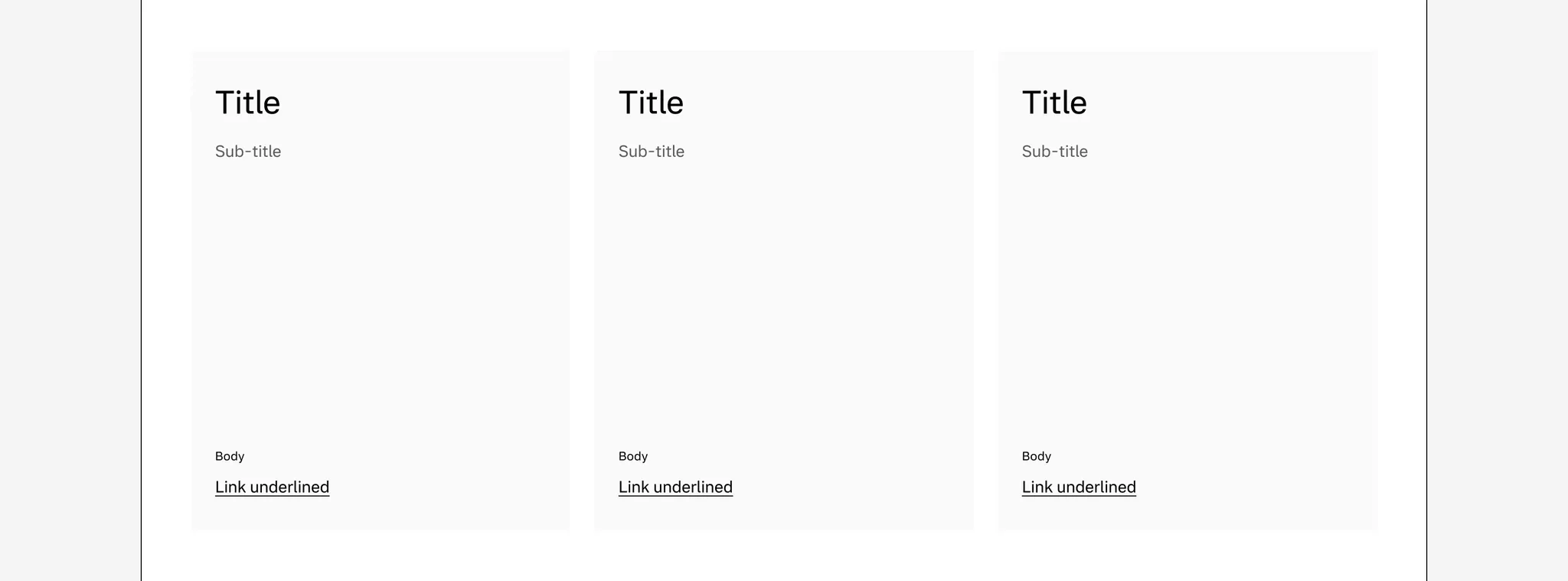
Showing: Text card with gutter
Page margins
Section titled “Page margins”The text card supports page margin layouts.
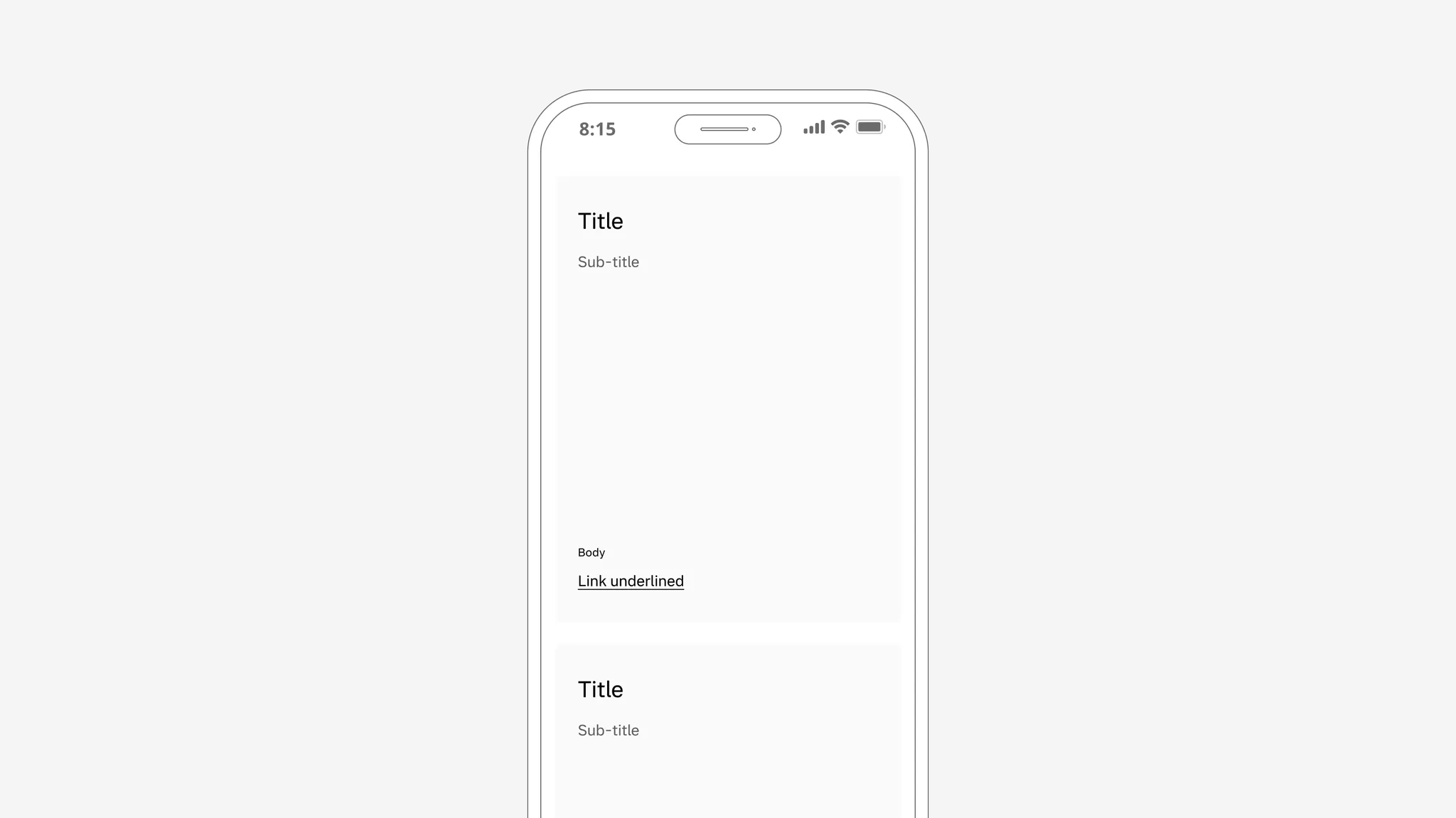
Showing: Text card in page margin layout
Examples
Section titled “Examples”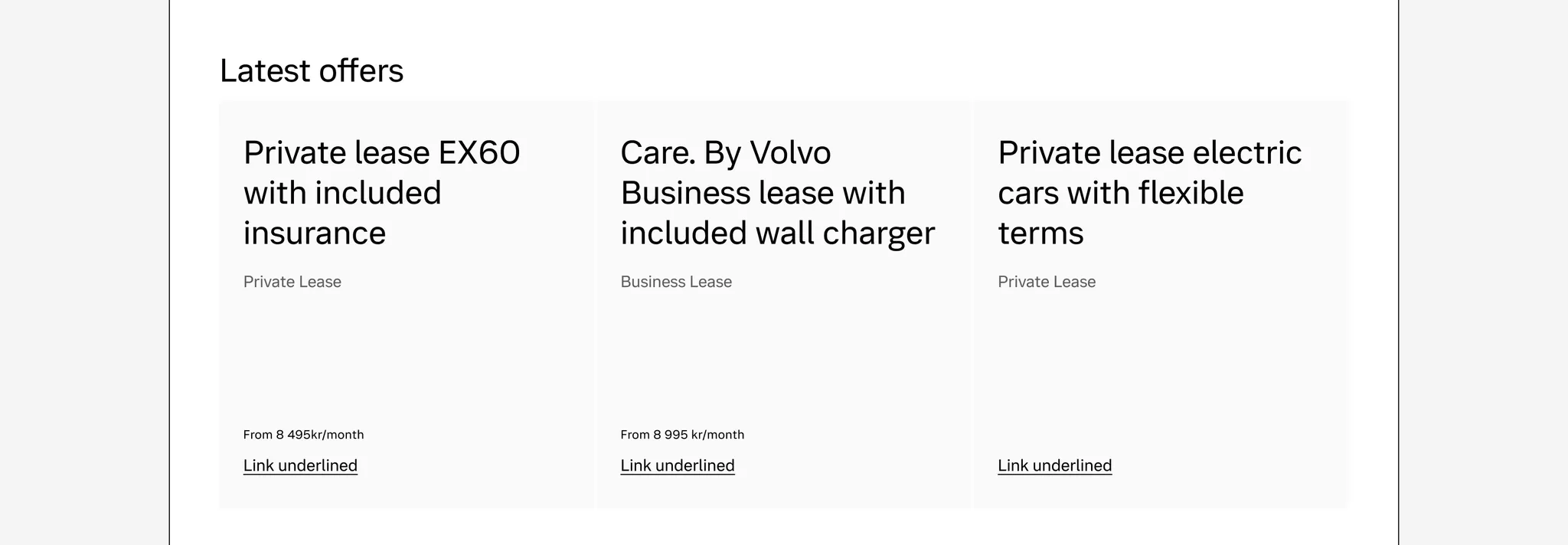
Example: Text card used to promote latest offers
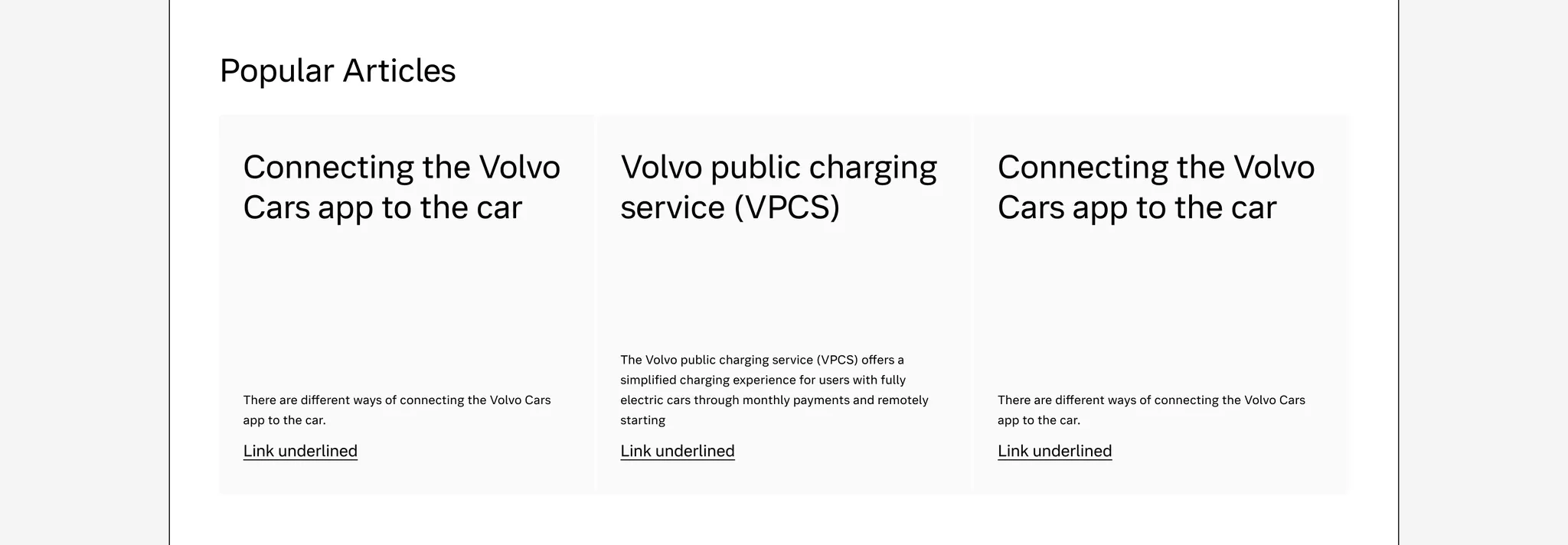
Example: Text card used to present popular support articles
Media card
Section titled “Media card”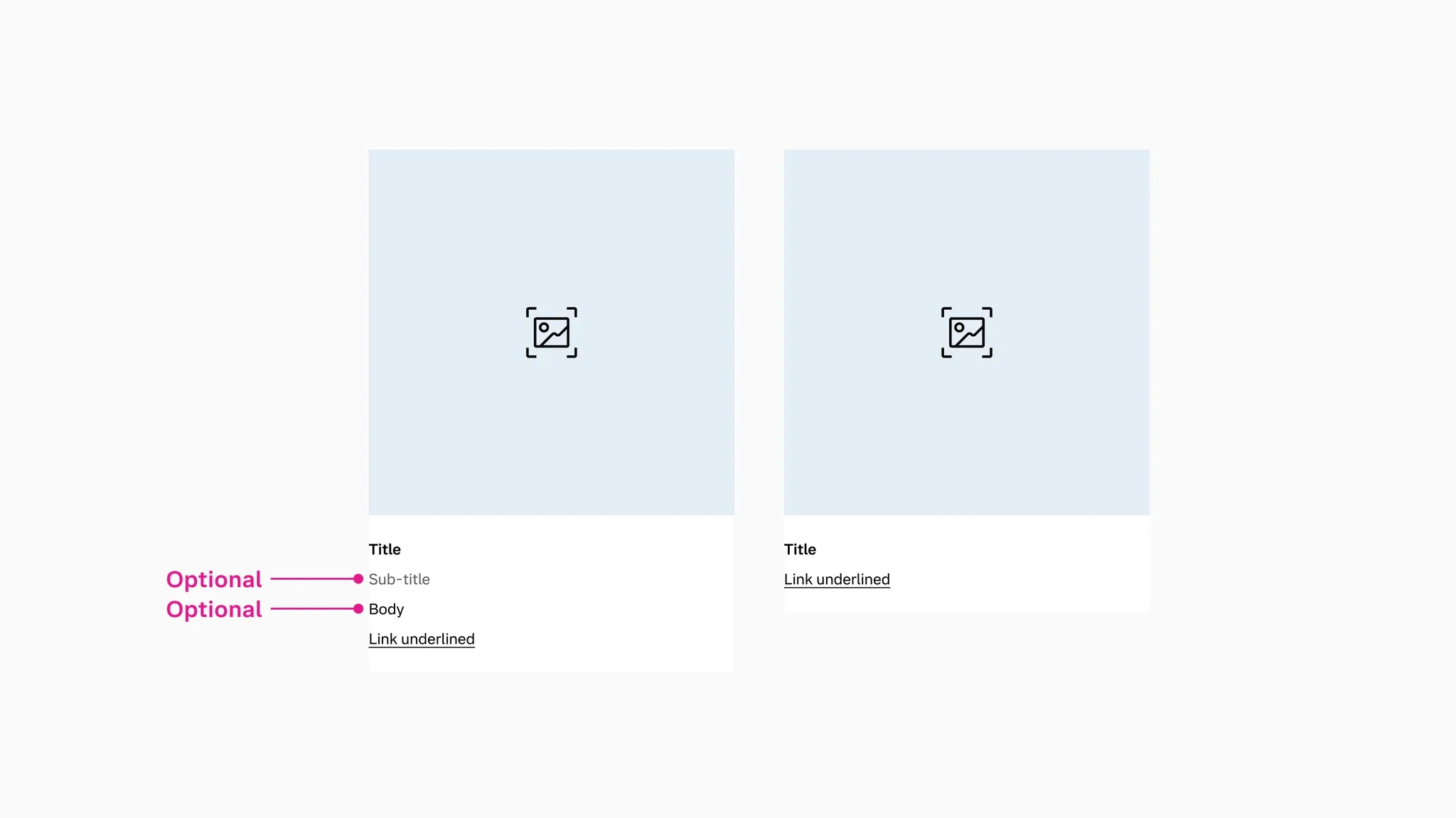
Showing: Media card with optional text elements turned off
Variants
Section titled “Variants”Ratios
Section titled “Ratios”The media card includes multiple media ratios to allow for compact and tall layouts.
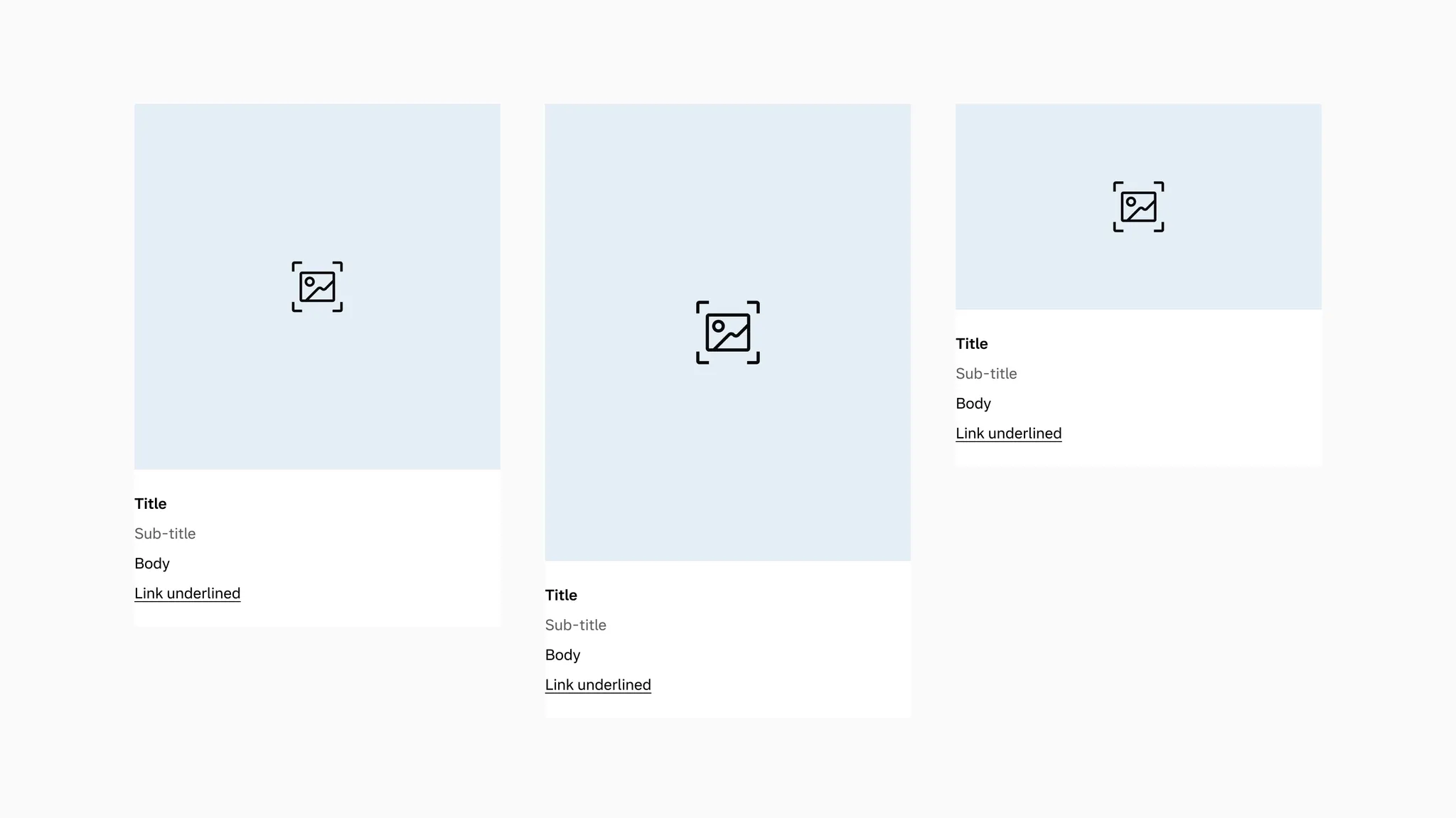
Showing: 1:1, 4:5, and 16:9 ratio variants.
Media type
Section titled “Media type”The media card includes two media types to allow for image and video.
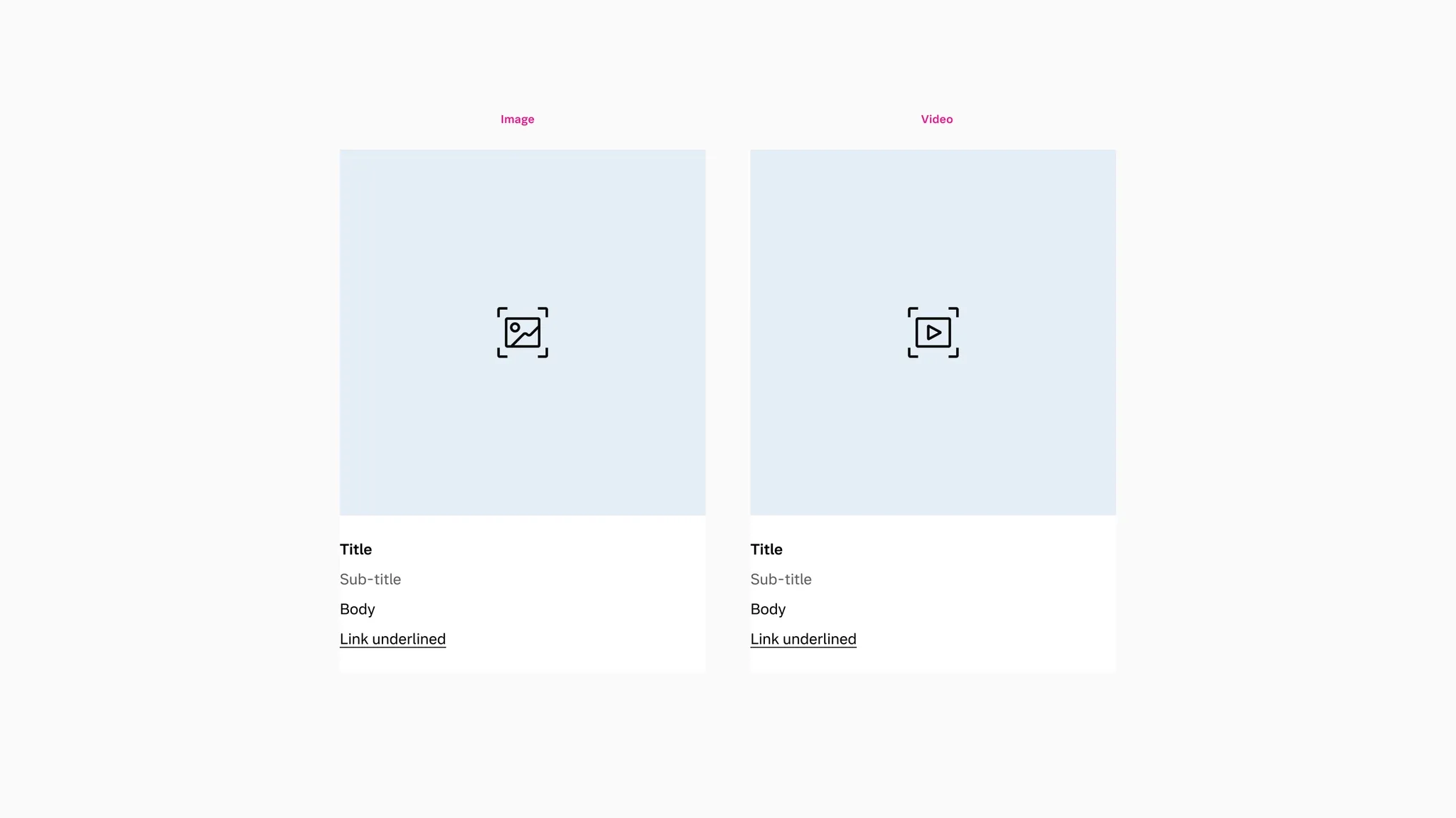
Showing: Image and video variants
States
Section titled “States”The media card itself does not have states, but the link underline has states.
Background color
Section titled “Background color”The media card supports primary background.
Showing: Media card in primary background
The media section comes with a default secondary background color to support transparent PNGs.
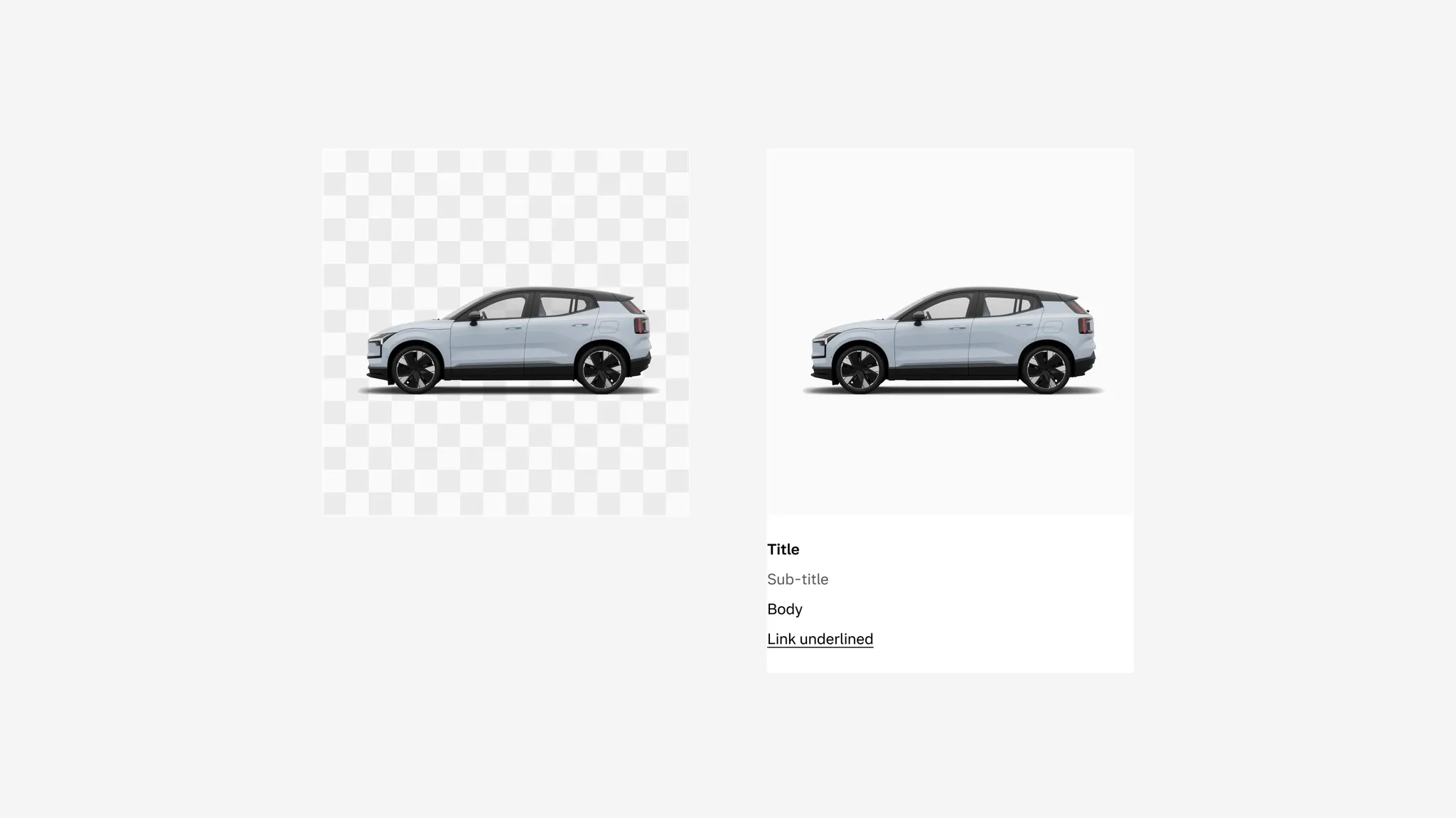
Showing: Media card with secondary background in media container
Spacing
Section titled “Spacing”In vertical columns and grids the media card can use gridded-element-gap or a more traditional gutter depending on context.
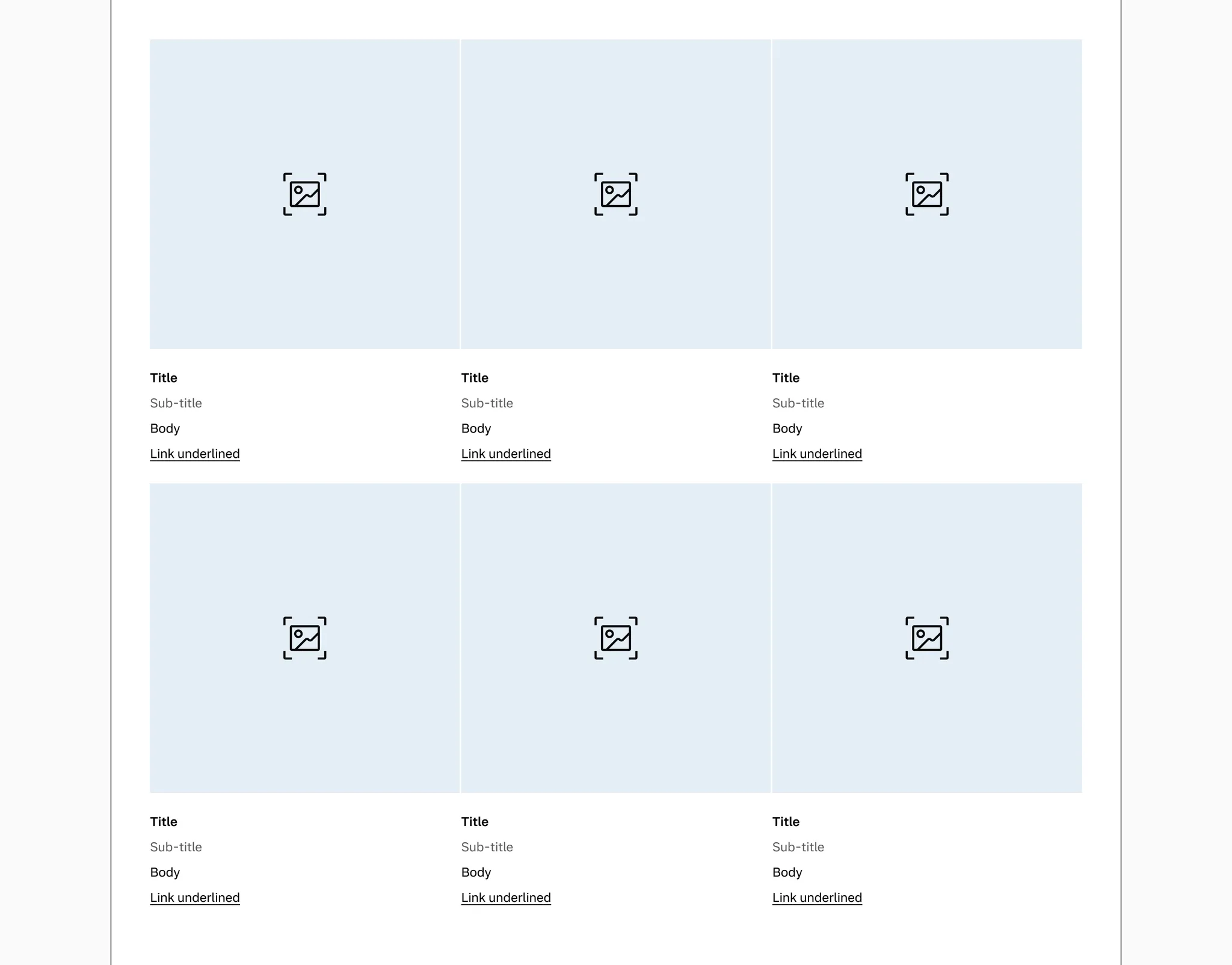
Showing: Media card with gridded-element-gap
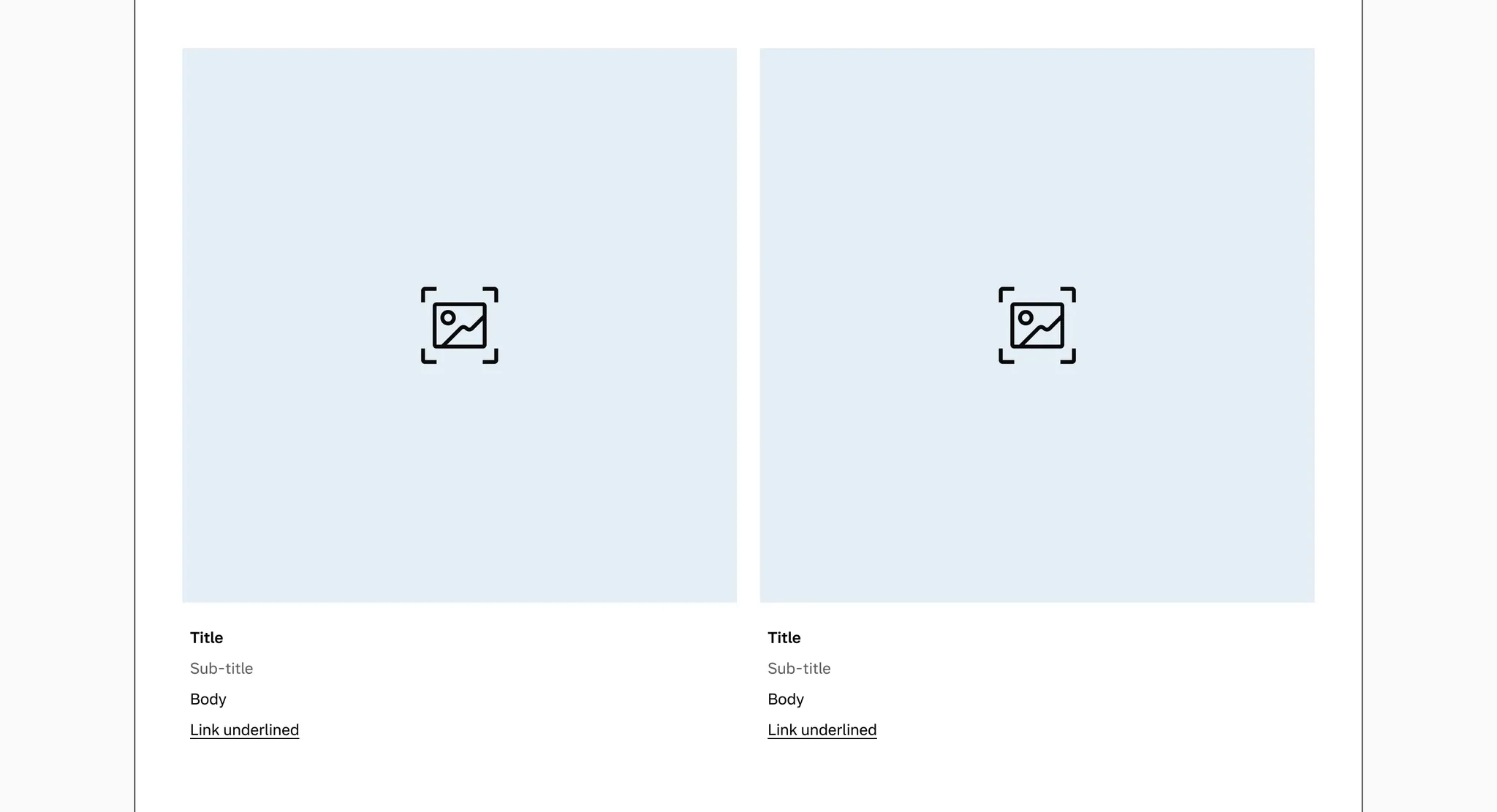
Showing: Media card with gutter
Page margins
Section titled “Page margins”The media card needs page margin — ensure it’s added to the page or container.
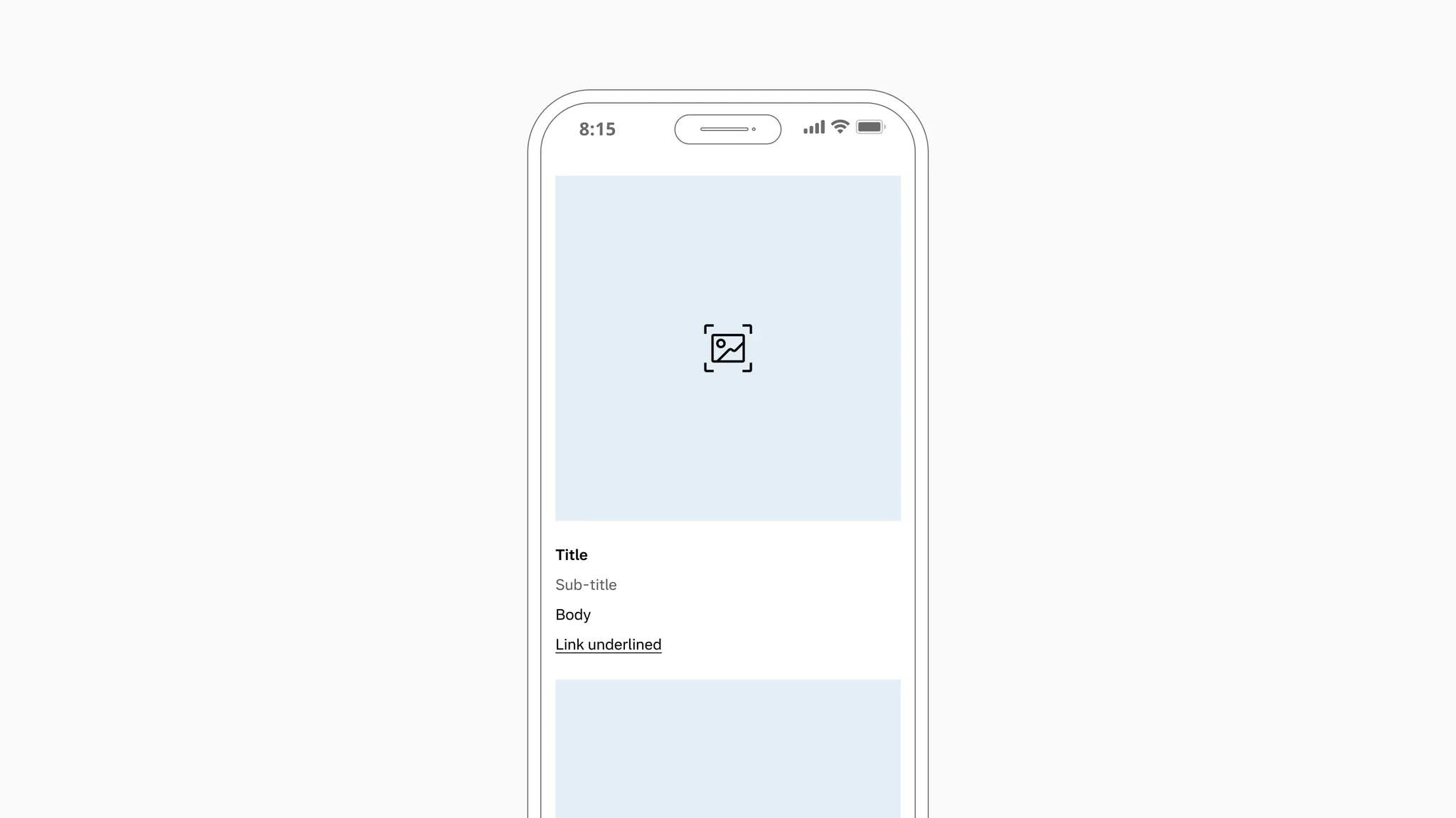
Showing: Media card in page margin layout
Examples
Section titled “Examples”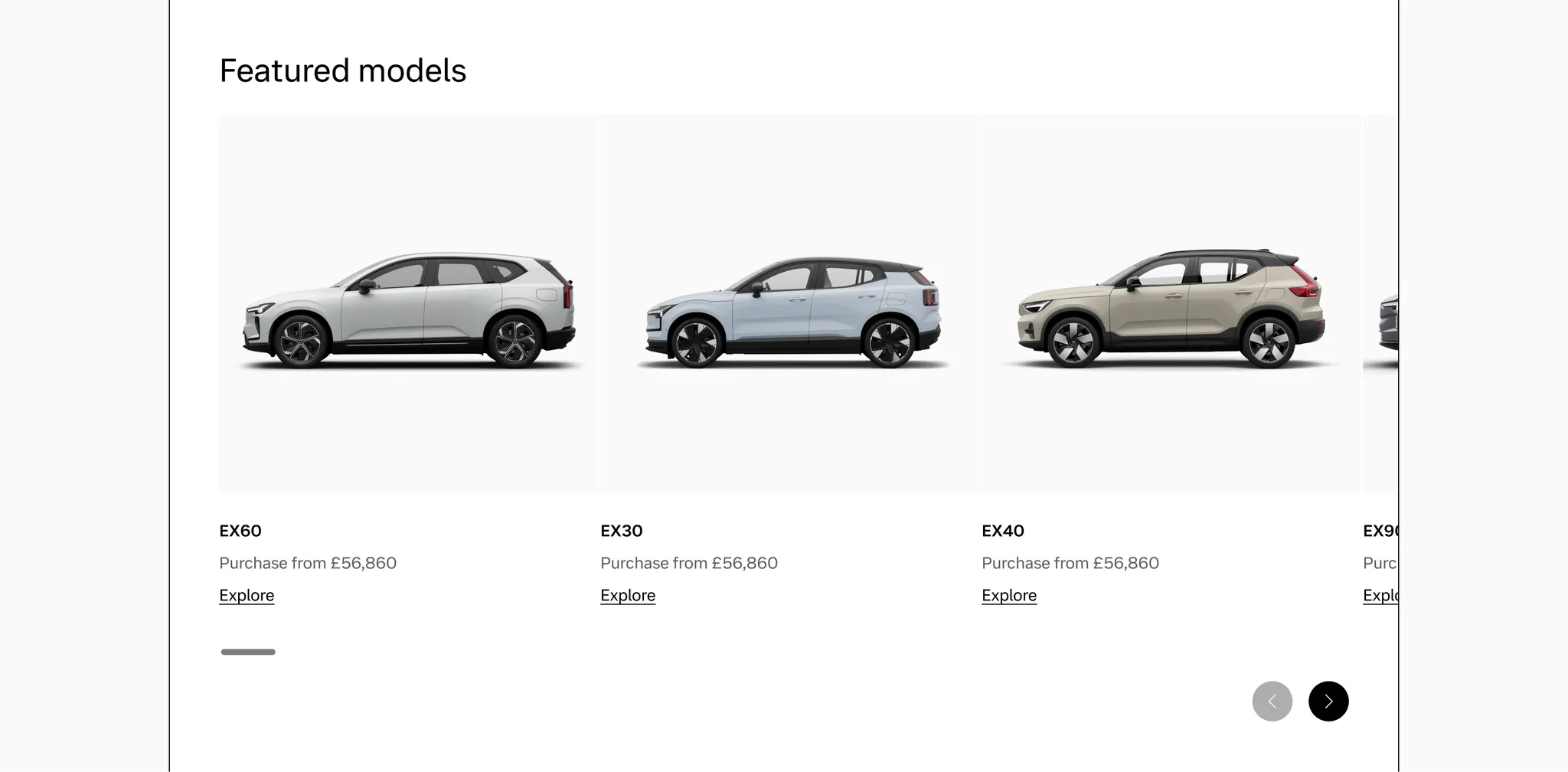
Example: Media card used in Reel for a car model display
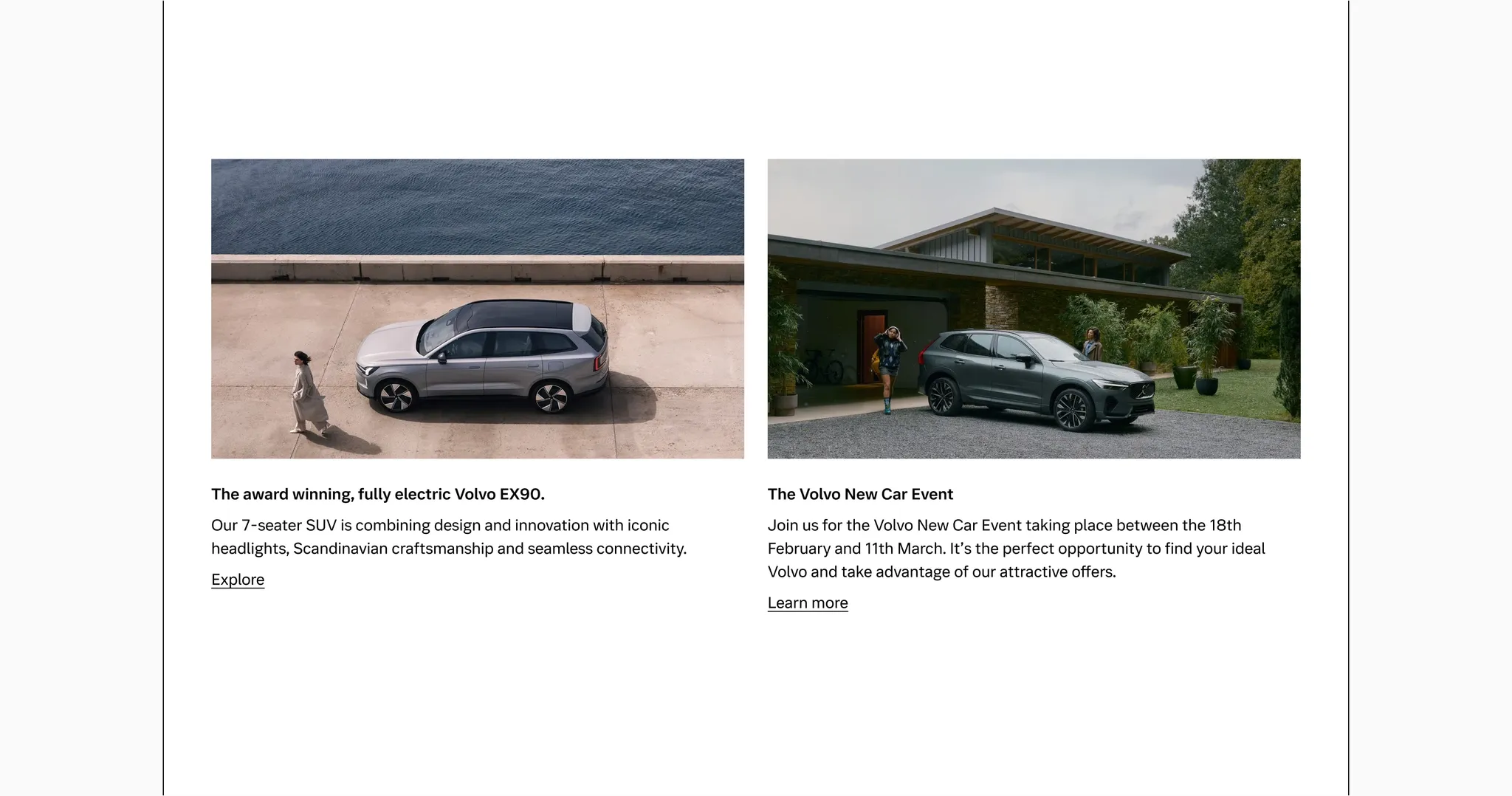
Example: Media card used to promote the EX90 and a new event
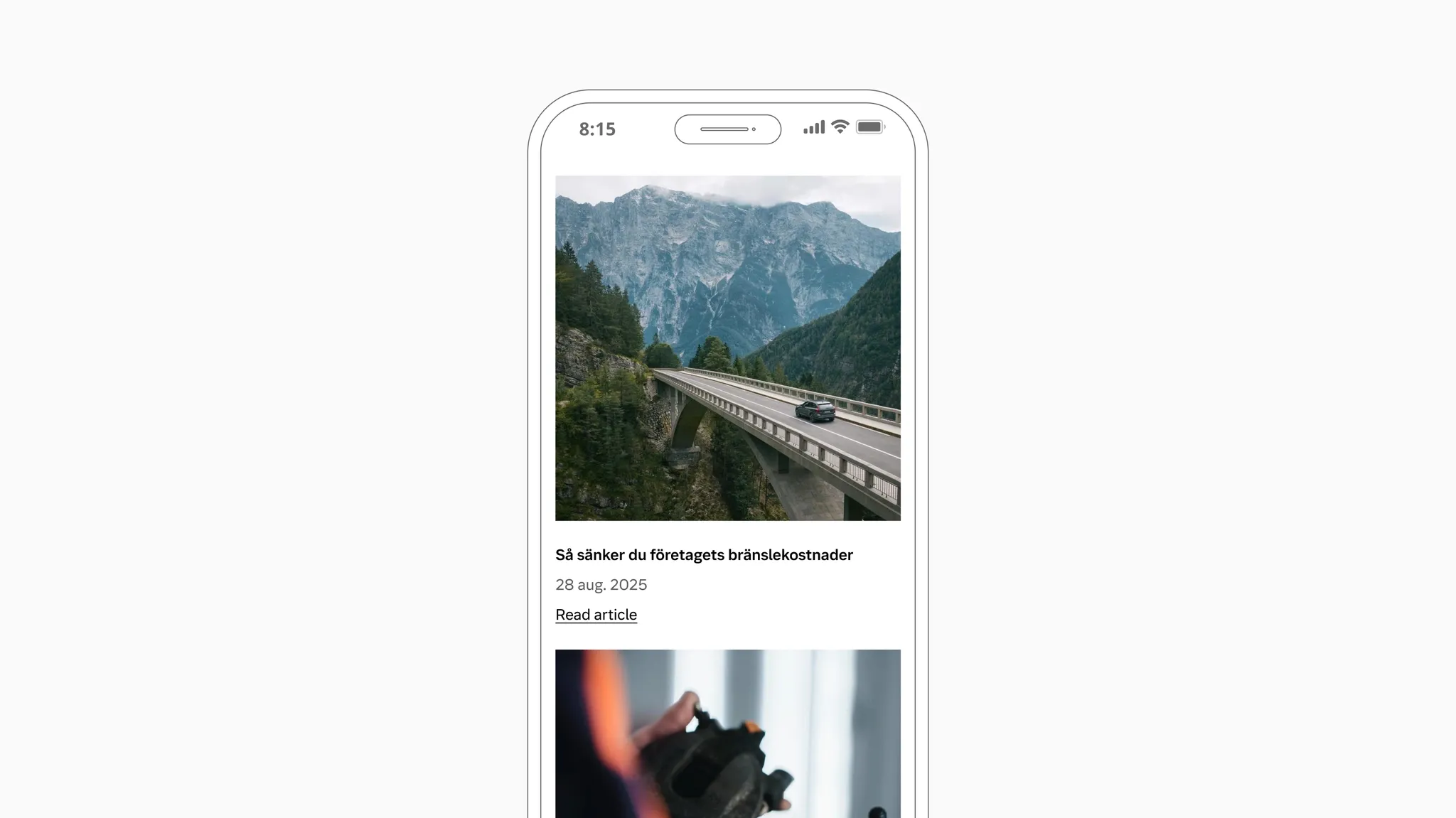
Example: Media card used to list news articles
Considerations
Section titled “Considerations”Always put cards in a grid or space where the width is constrained. Never use one card to take up the full width of a page on larger breakpoints.
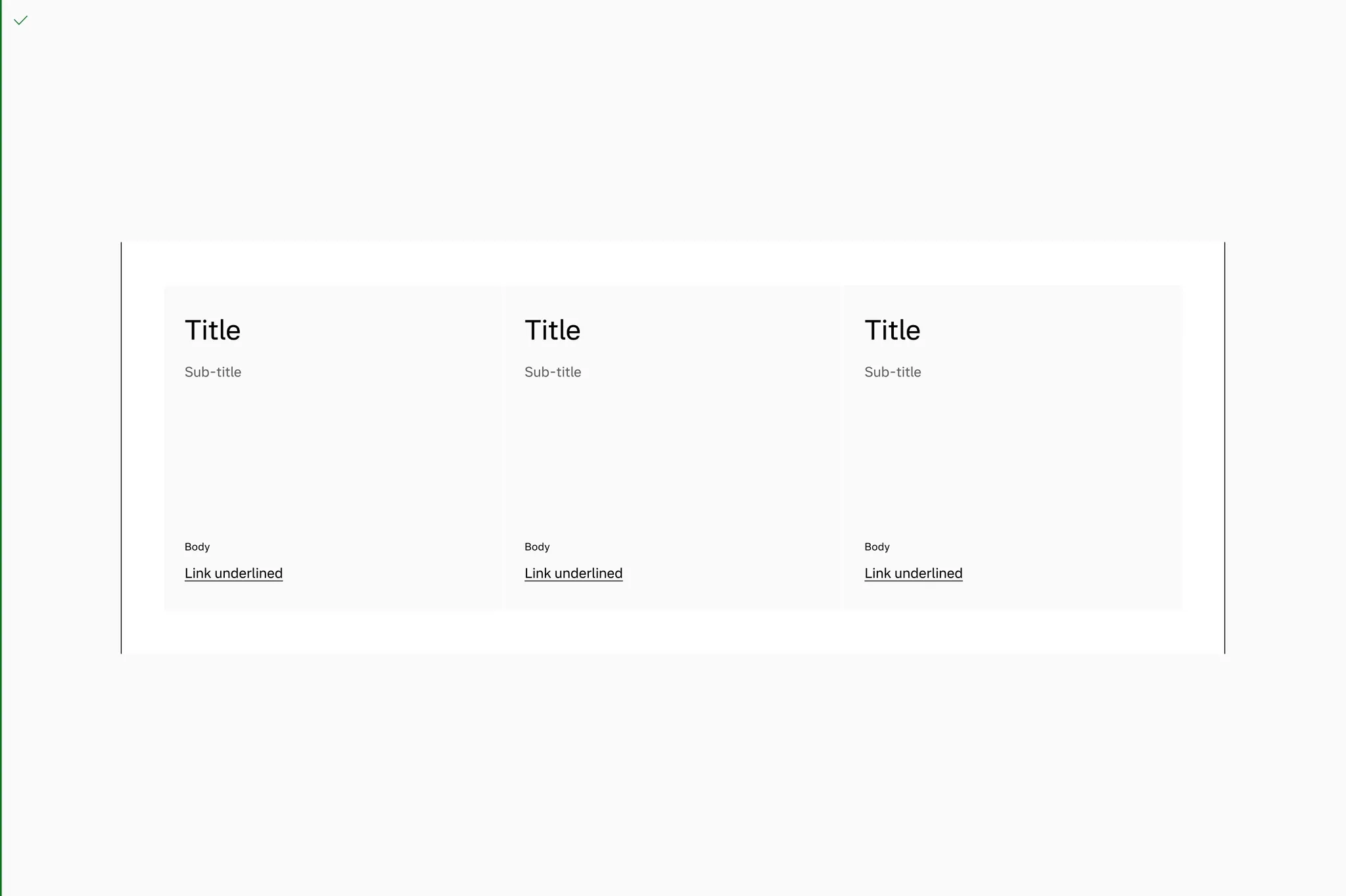
Do put text cards in a grid or space where the width is constrained.
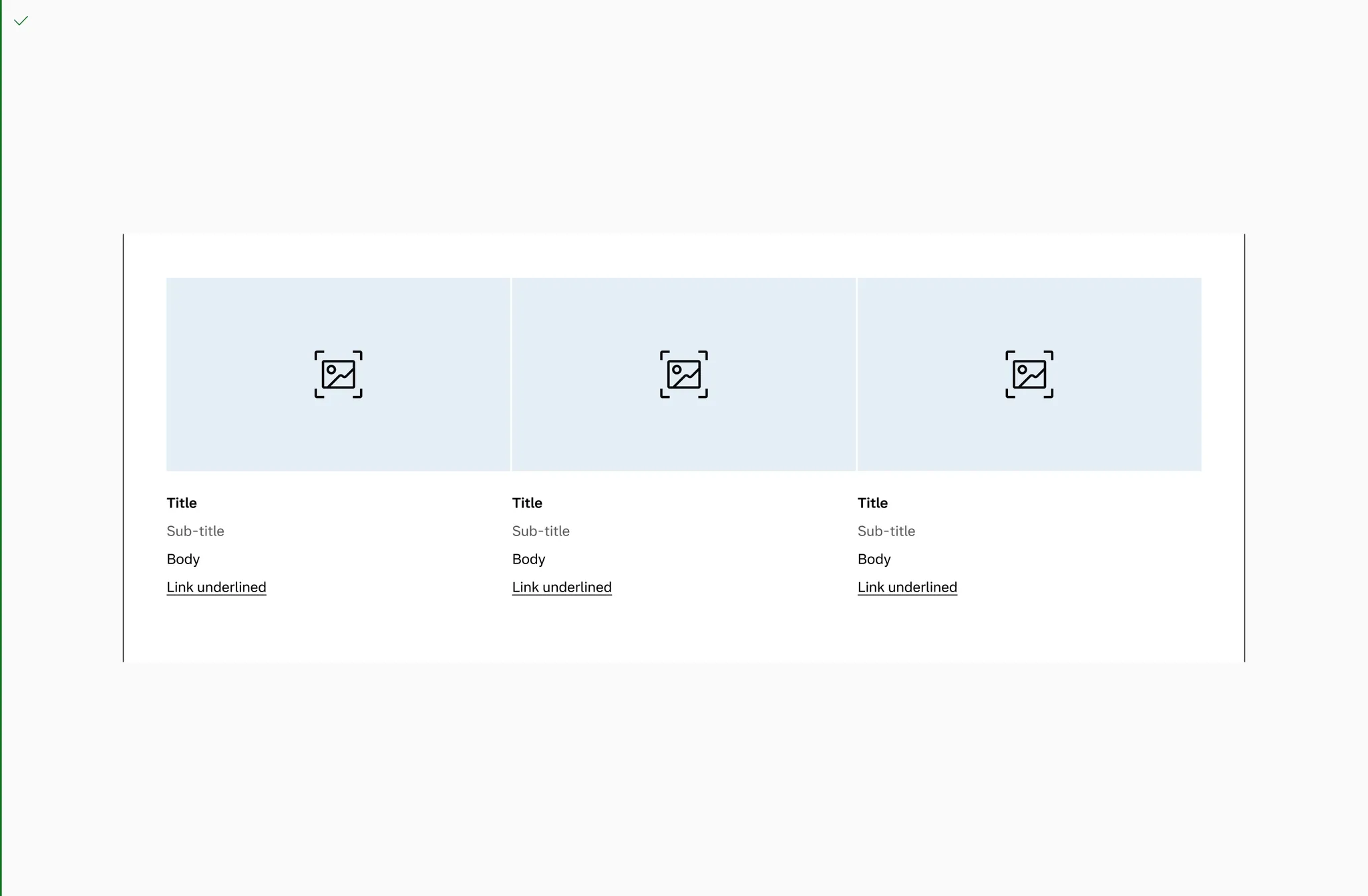
Do put media cards in a constrained grid.
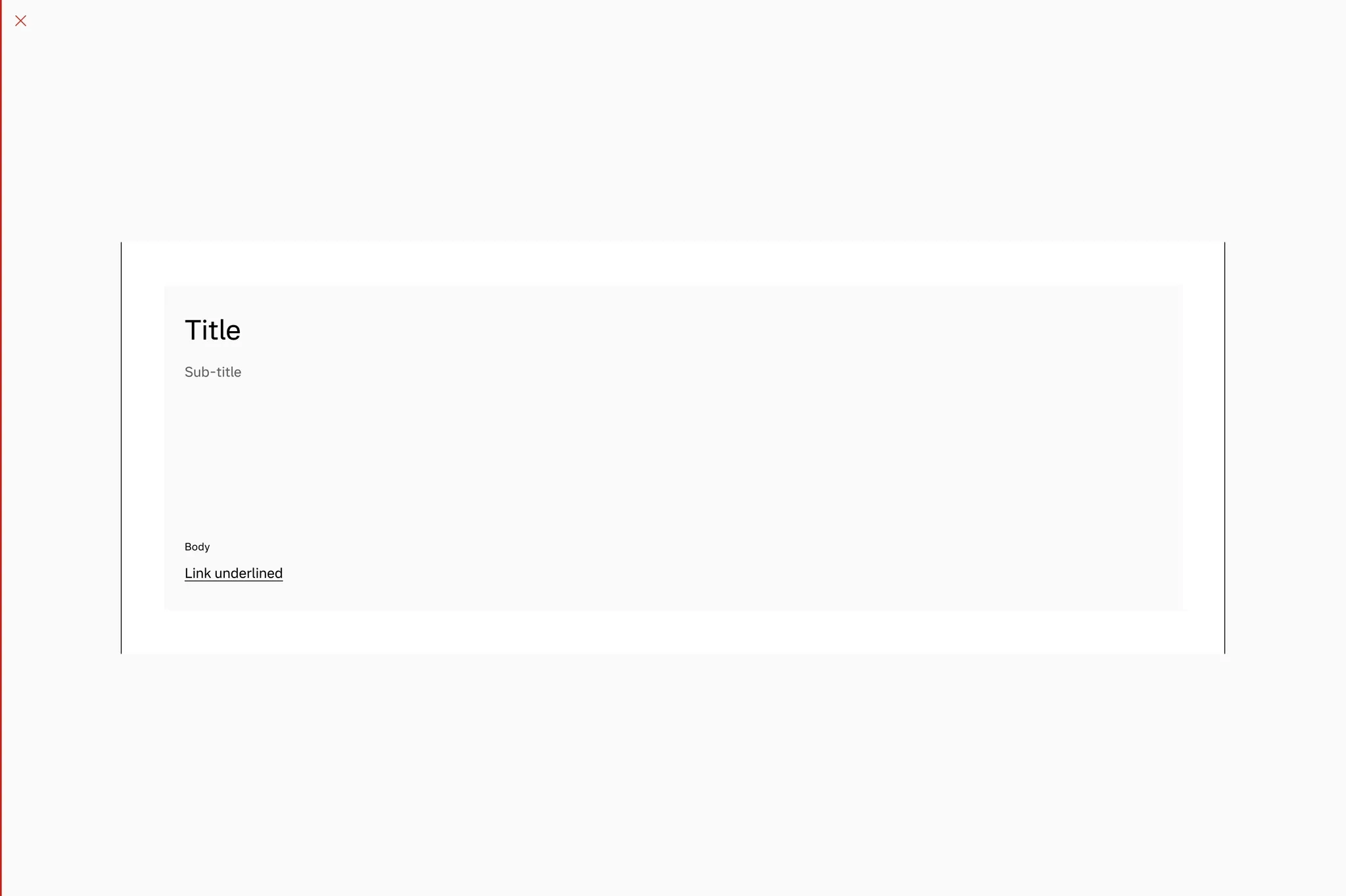
Don’t use one text card to take up the full width of a page on larger breakpoints.
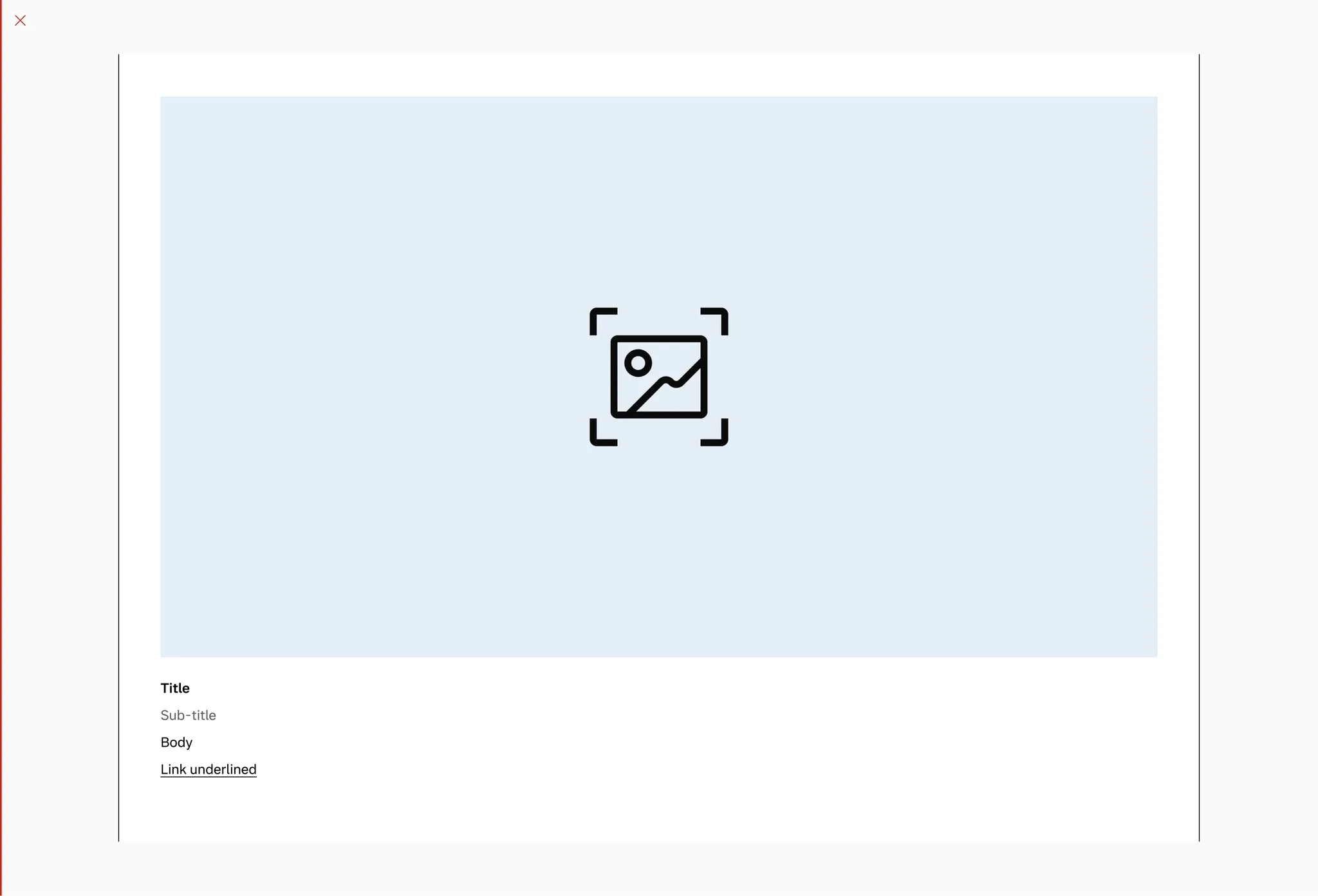
Don’t go full bleed with media cards.
Page margin
Section titled “Page margin”Always put cards in containers with pagemargin if the container spans the page.
Do use pagemargin on the text card container.
Do use pagemargin on the media card container.
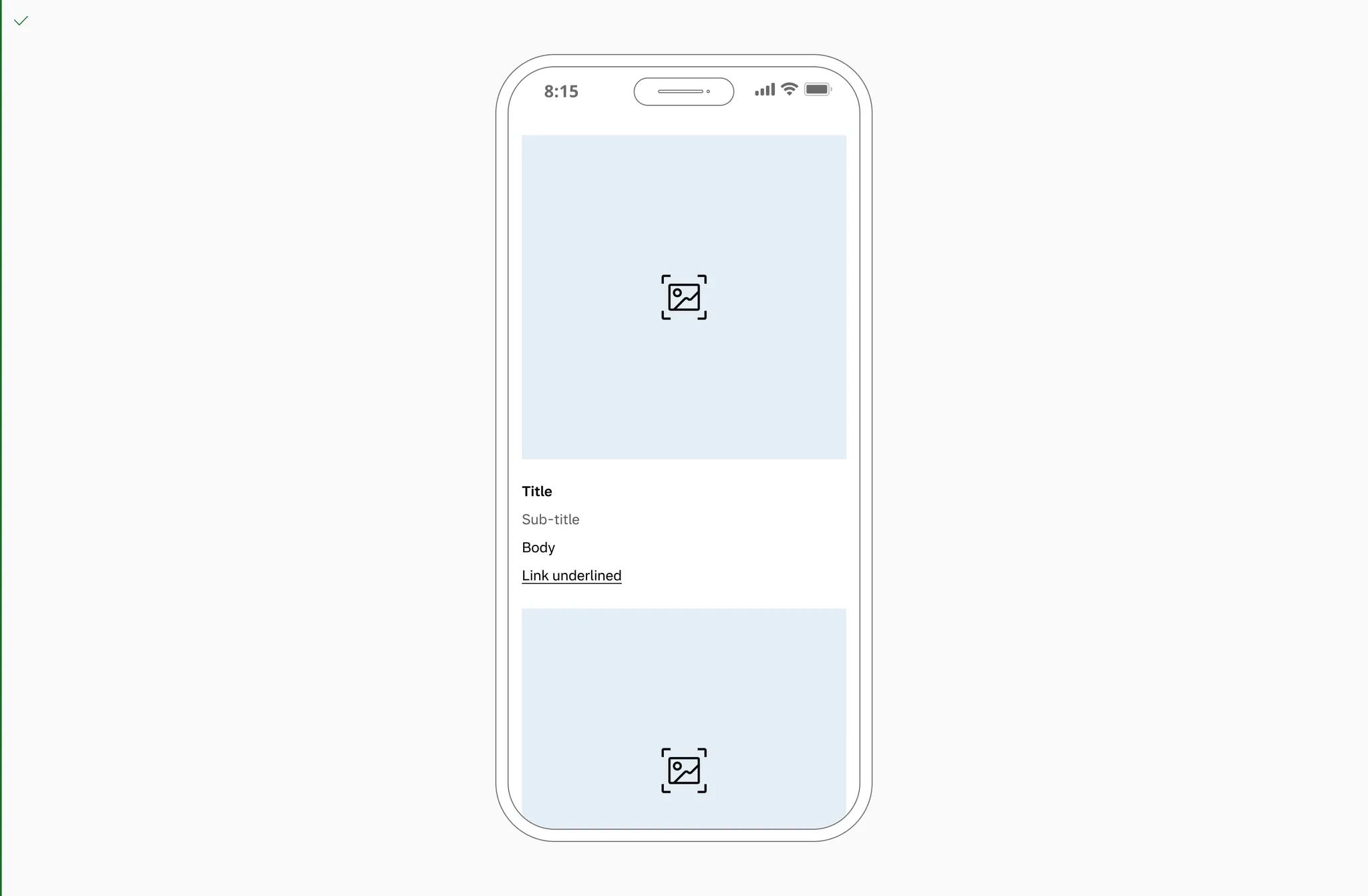
Do use pagemargin on the media card grid.
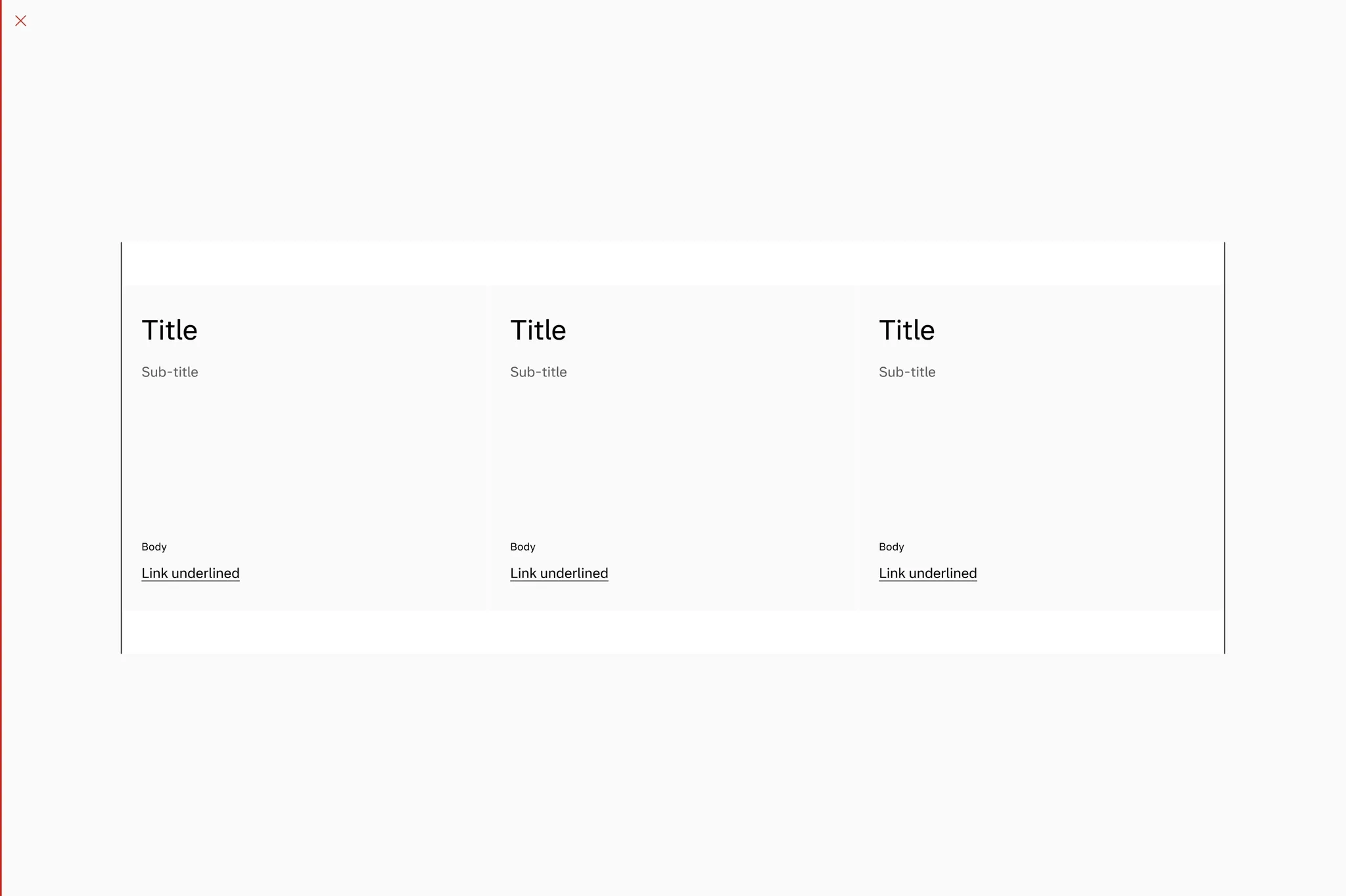
Don’t go full bleed on the text card container.
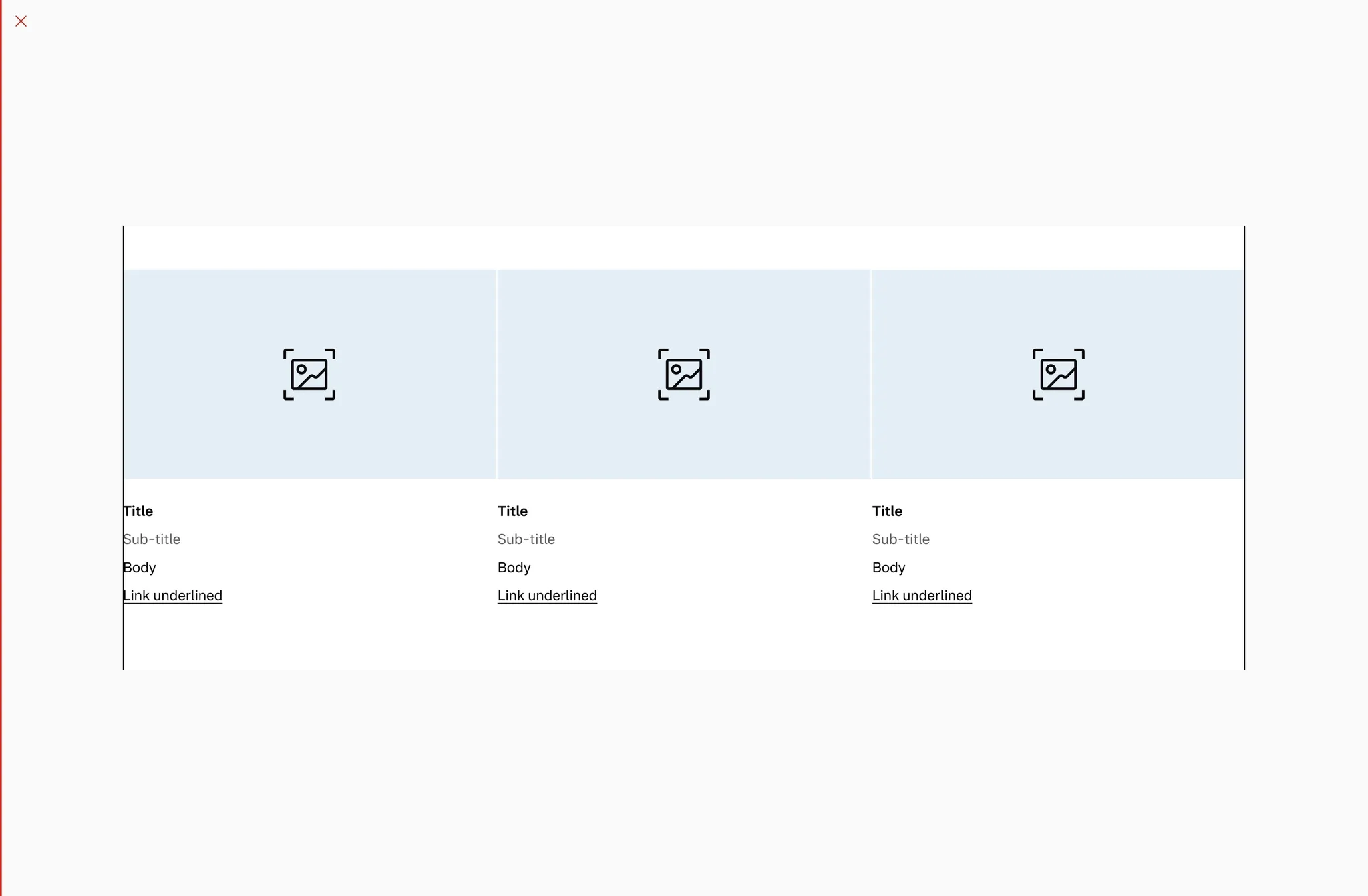
Don’t go full bleed on the media card container.
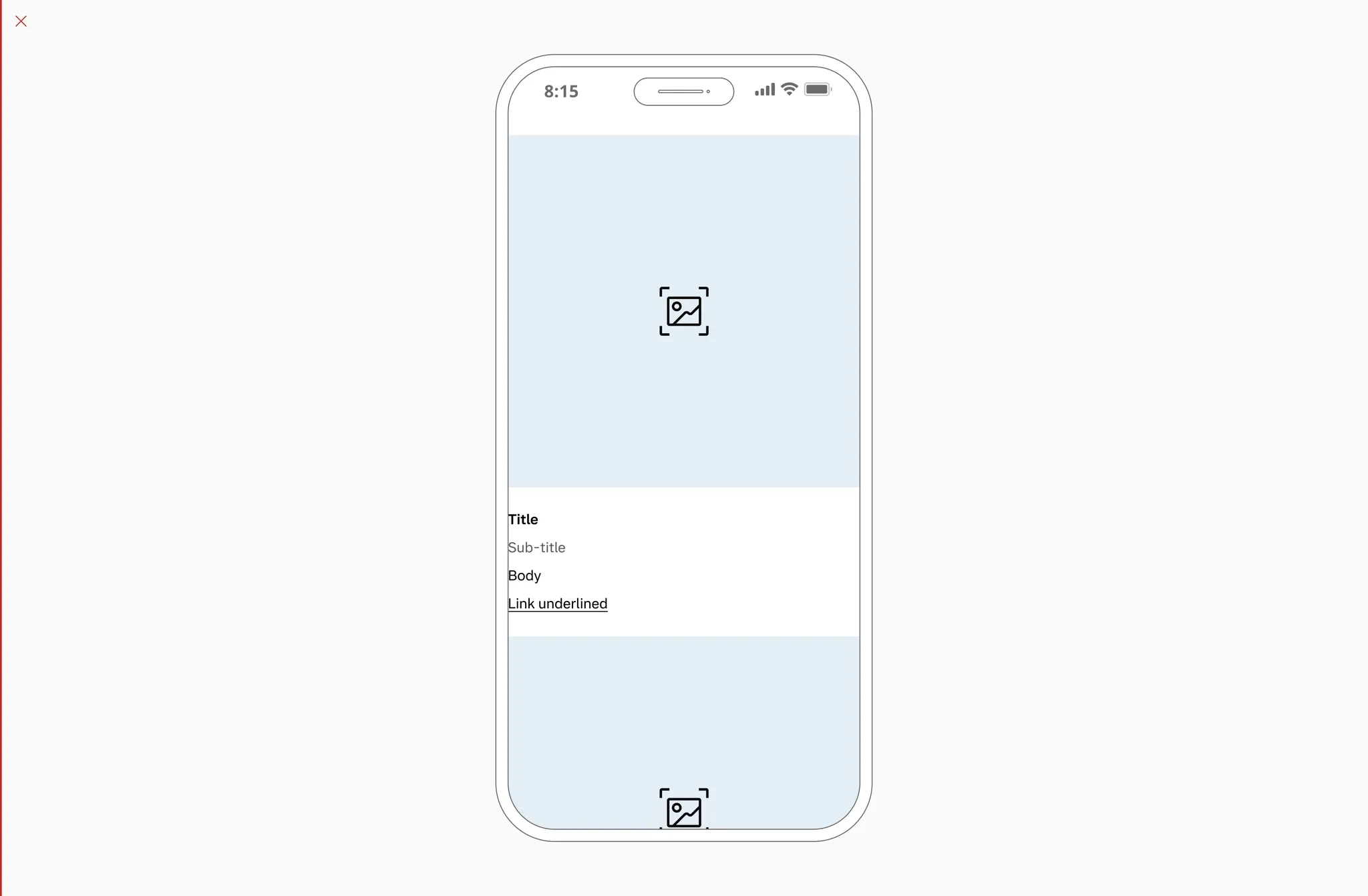
Don’t go full bleed on the media card grid.